 By
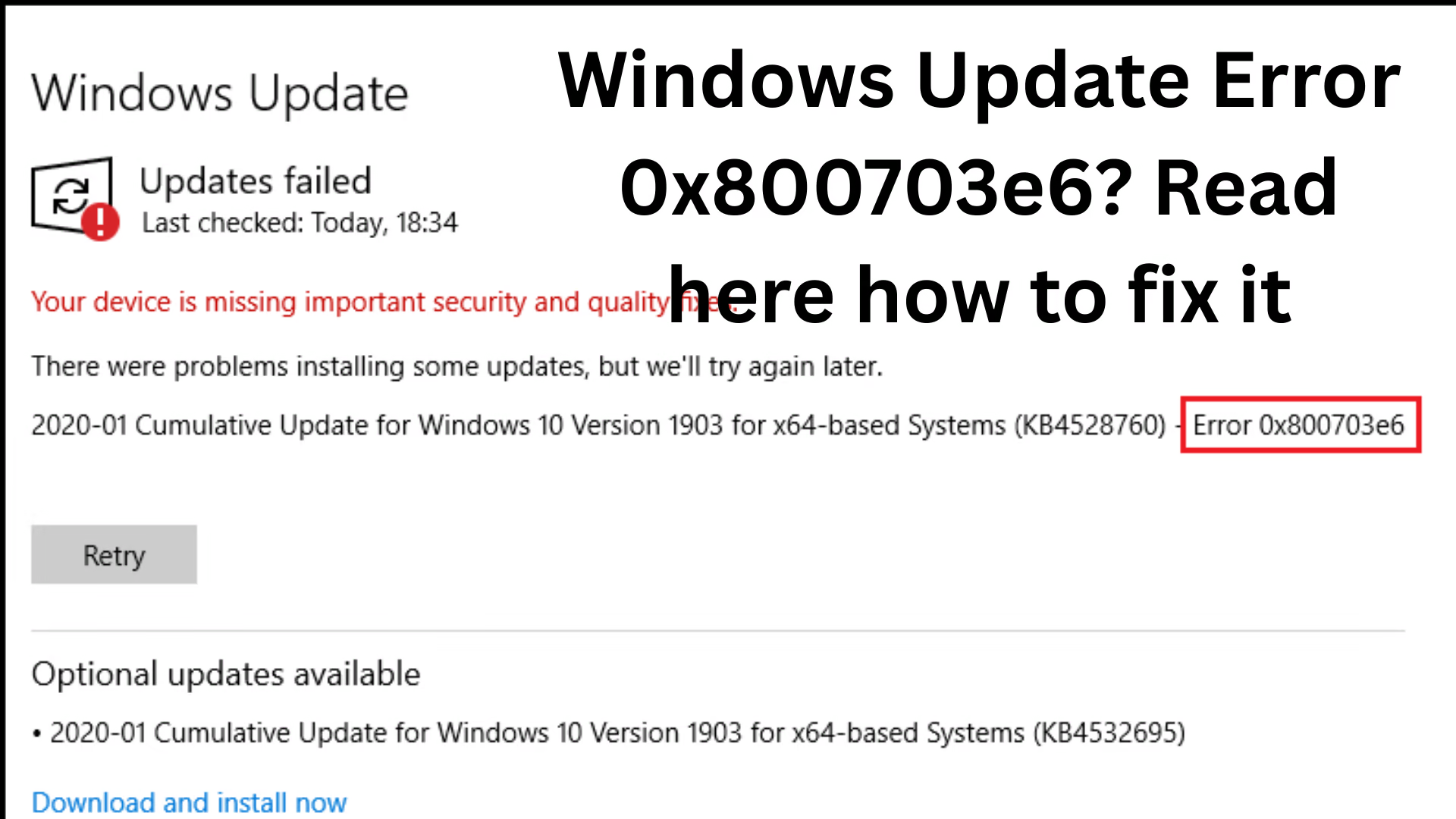
ByIf your system is repeatedly encountering Windows Update Error 0x800703e6, this issue can disrupt the system update process. This error is typically caused by corrupt system files, glitches in Windows Update services, driver issues, or security settings. In this article, we will provide you with the most effective and practical methods to resolve this problem at its root.
What is Error 0x800703e6?
This is a common Windows Update error that occurs when the system is unable to install updates. This issue often arises due to the following reasons:
System file corruption
Corrupted Windows Update cache
Driver conflicts
Security permissions issues
Best Ways to Fix Windows Update Error 0x800703e6
1. Run the Windows Update Troubleshooter
First, we should utilize the built-in troubleshooter:
Steps:
1. Open Settings.
2. Go to Update & Security.
3. Click on Troubleshoot.
4. Select Additional troubleshooters.
5. Click on Windows Update and select Run.
This tool automatically identifies and fixes common issues.
2. Clear the Windows Update Cache
Often, the update cache becomes corrupted, leading to this error.
Steps:
1. Open Command Prompt in Administrator mode.
2. Run the commands listed below, one by one:
“`
net stop wuauserv
net stop bits
net stop cryptsvc
net stop msiserver
“`
3. Now, navigate to this folder:
`C:\Windows\SoftwareDistribution`
4. Delete all the files contained within this folder.
5. Then, run these commands:
“`
net start wuauserv
net start bits
net start cryptsvc
net start msiserver
“`
This process resets Windows Update.
3. Run a System File Checker (SFC) Scan
If system files are corrupted, the SFC tool can repair them.
Command:
“`
sfc /scannow
“`
This scan repairs all corrupted files.
4. Use the DISM Tool
It is essential to run the DISM tool after SFC:
Command:
“`
DISM /Online /Cleanup-Image /RestoreHealth
“`
This repairs the Windows image and resolves update errors.
Also read: How to Fix Low Call Volume on iPhone?
5. Restart Windows Update Services
Sometimes, services do not function correctly.
Steps:
1. Open Run (Win + R)
2. Type: `services.msc`
3. Locate these services:
Windows Update
Background Intelligent Transfer Service
4. Restart both of them.
6. Temporarily Disable Antivirus or Firewall
Some security software can block the update process.
Try running the update after temporarily disabling your antivirus.
7. Perform a Clean Boot
Sometimes, third-party applications cause issues.
Steps:
1. Type `msconfig` in the Run dialog
2. Go to the Services tab
3. Select “Hide all Microsoft services”
4. Click on “Disable all”
5. Go to the Startup tab and disable all applications
6. Restart the system
Now, try running the update again.
8. Update Drivers
Outdated or corrupted drivers can also be the cause of this error.
Steps:
1. Open Device Manager
2. Update all critical drivers
3. Specifically:
graphics driver
Network Driver
9. Manually Install Windows Updates
If automatic updates are failing, you can install them manually.
Steps:
1. Check your Windows Update History
2. Note down the KB number
3. Visit the Microsoft Update Catalog to download the update
4. Install it manually
10. Use System Restore
If the issue has started recently, revert the system to a previous state. Steps:
1. Open the Control Panel.
2. Click on “Recovery.”
3. Select “Open System Restore.”
4. Choose an earlier restore point.
Important Tips
Always keep your system updated.
Do not install unnecessary software.
Perform regular system scans.
Do not interrupt Windows Update while it is in progress.
Also read: How to Recharge Your Mobile via WhatsApp? An Easy, Fast, and Secure Method
Conclusion
Windows Update Error 0x800703e6 is a common yet frustrating issue that can be easily resolved using the correct methods. All the solutions provided above have been tested and proven effective. If you follow these steps carefully, your system will update without any interruptions.
FAQ (Frequently Asked Questions)
Q1. What is Windows Update Error 0x800703e6?
This is a Windows Update error code that appears when the system fails to download or install an update.
Q2. What are the main causes of Error 0x800703e6?
The primary causes include:
Corrupt system files
Corrupted Windows Update cache
Driver conflicts
Security or permission issues
Q3. Can the Windows Update Troubleshooter fix this issue?
Yes, in many cases, the Windows Update Troubleshooter can automatically detect and resolve the problem.
Q4. Can this error be caused by a virus?
Not directly; however, malware or viruses can corrupt system files, which may subsequently trigger this error.
Q5. Can antivirus software block updates?
Yes, in some instances, antivirus software or firewalls can block Windows updates; therefore, you should temporarily disable them to check if that resolves the issue.
Q6. Are the SFC and DISM commands safe to use?
Yes, the SFC (System File Checker) and DISM tools are completely safe and are official utilities provided by Microsoft.
Q7. Can this error be fixed without losing any data?
Yes, all the methods outlined in this guide allow you to fix the problem without causing any data loss.
Q8. What should I do if all the methods fail?
In such a situation, you can:
Use System Restore
Or, Reset/Reinstall Windows
Q9. Is performing a manual update a valid solution?
Yes, if automatic updates are failing, manually installing the update via the Microsoft Update Catalog is an effective solution.
Q10. How can I prevent this error?
Regularly update your system
Install software only from trusted sources
Perform periodic system scans
Keep unnecessary background applications disabled