 By
ByIn today’s times, a common issue is emerging among Apple iPhone users—low call volume during conversations. This problem can stem from various causes, such as software settings, hardware issues, or network-related complications. In this article, we will comprehensively cover all the methods you can use to quickly resolve the low call volume issue on your iPhone.
Why is the Call Volume Low on an iPhone?
There could be several potential reasons behind low call volume:
Incorrect sound settings
Dust or debris in the speaker or receiver
iOS bugs or software glitches
Connection to Bluetooth or other devices
Network issues
Keeping all these factors in mind, try the solutions provided below.
1. Increase Volume During a Call (The Easiest Method)
Often, the problem is simply that the volume is set too low.
How to do it:
Press the “Volume Up” button located on the side of your iPhone while on a call.
Ensure that the volume bar displayed on the screen is at its maximum level.
Note: Call volume and media volume are distinct settings.
2. Adjust Sound Settings
Your iPhone’s settings can also impact the volume levels.
Steps:
1. Open “Settings.”
2. Go to “Sounds & Haptics.”
3. Increase the “Ringer and Alerts” slider.
4. Toggle on “Change with Buttons.”
3. Check Silence Mode (Silent Switch)
If the Silent Switch located on the side of your iPhone is engaged, it can affect the call volume.
Flip the switch upwards.
If an orange line is visible, Silent Mode is currently active.
4. Clean the Speaker and Receiver
Over time, the accumulation of dust and debris can reduce audio volume.
How to clean:
Use a soft-bristled brush or a toothbrush.
Gently clean the speaker grille.
Do not use any liquids or cleaning fluids.
5. Disconnect Bluetooth Devices
If your iPhone is currently connected to a Bluetooth device, the call audio may be routed through that device instead. How to Check:
Settings → Bluetooth
Turn off all devices
6. Reset Network Settings
Network issues can also affect call quality and volume.
Steps:
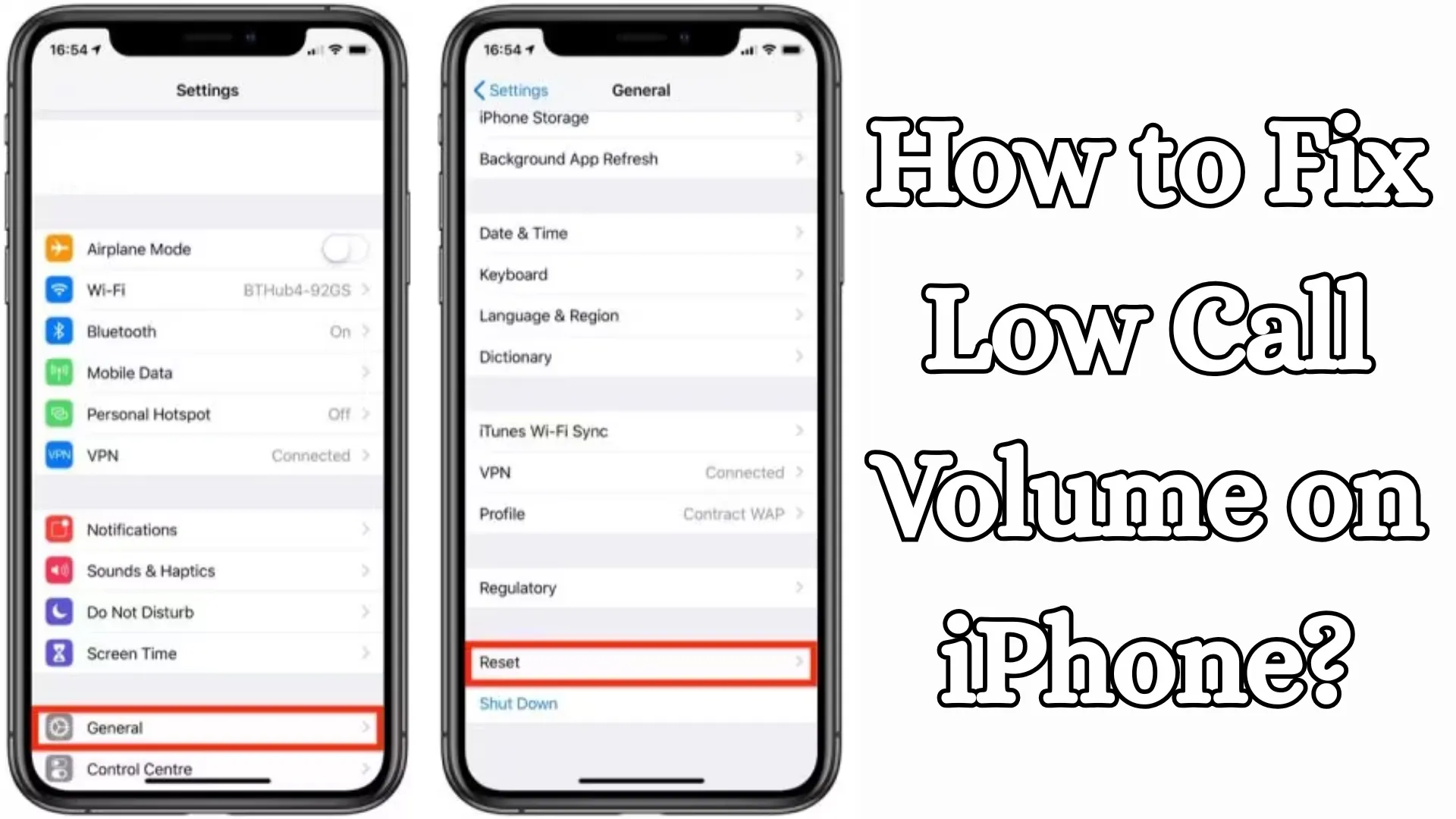
1. Settings → General
2. Transfer or Reset iPhone
3. Reset → Reset Network Settings
Note that this will remove your Wi-Fi passwords.
Also read: How to Disable Internet Connection Sharing in Windows 11?
7. Restart Your iPhone
This is a basic yet effective method.
How to do it:
Press and hold the Power Button
Slide to Power Off
Then turn it back on
8. Update iOS
Often, this issue is caused by software bugs.
To update:
1. Settings → General
2. Software Update
3. If an update is available, install it
9. Turn off Noise Cancellation
This feature can sometimes reduce call volume.
How to turn it off:
Settings → Accessibility
Audio/Visual
Turn off Phone Noise Cancellation
10. Test Speaker Mode
To check if the speaker is functioning correctly:
Turn on Speaker Mode during a call
If the audio sounds clear, the issue may lie with the receiver
11. Reset All Settings
If none of the above solutions work, reset your settings.
Steps:
1. Settings → General
2. Transfer or Reset iPhone
3. Reset → Reset All Settings
This will not delete your personal data, but it will reset your settings.
12. Contact Apple Support
If the issue is hardware-related, professional assistance is necessary.
Visit an authorized service center
Or contact Apple Support
Pro Tips: To Boost Call Volume
Always keep your iPhone clean
Ensure your cover or case does not block the speaker
Keep your device updated regularly
Use original accessories
Also read: How to Recharge Your Mobile via WhatsApp? An Easy, Fast, and Secure Method
Conclusion
In this guide, we have explained in detail how you can easily fix the “Low Call Volume” issue on your iPhone. By following the methods outlined above step-by-step, you can resolve this problem without requiring any technical assistance. If the problem still persists, seeking professional assistance would be the best option.
Frequently Asked Questions (FAQs) – iPhone Call Volume Problem
Q1. Why is the call volume low on my iPhone?
Answer: This issue is typically caused by incorrect sound settings, dust accumulation in the speaker, Bluetooth connections, or software bugs.
Q2. Can simply pressing the Volume buttons fix the problem?
Answer: Yes, often pressing the Volume Up button during a call resolves the issue immediately, as the call volume is controlled independently.
Q3. Can having Bluetooth turned on lower the call volume?
Answer: Absolutely. If your iPhone is connected to a Bluetooth device, the call audio is routed to that device, resulting in lower volume heard through the phone itself.
Q4. Is it necessary to clean the iPhone’s speaker?
Answer: Yes. Over time, dust and debris accumulate in the speaker or receiver, causing the audio to become muffled or faint. Regular cleaning can resolve this issue.
Q5. What is “Phone Noise Cancellation,” and why might I need to turn it off?
Answer: This feature reduces background noise, but it can sometimes affect the call volume as well; therefore, you should try turning it off to see if that resolves the issue.
Q6. What happens when I perform a Network Reset?
Answer: Performing a Network Reset resets your Wi-Fi, mobile network, and Bluetooth settings, which can lead to improvements in call quality and volume.
Q7. Can updating iOS fix this problem?
Answer: Yes. Apple frequently releases new updates to fix software bugs; therefore, updating your iOS version may resolve the issue.
Q8. Why is the audio clear in Speaker Mode but low during a normal call?
Answer: This indicates that there may be an issue with the iPhone’s earpiece (receiver), which may require cleaning or repair.
Q9. Will performing a “Reset All Settings” delete my data?
Answer: No. This will not delete your personal data (photos, videos, apps); it will only reset your device settings.
Q10. When should I visit an Apple Service Center? Answer: When all software solutions fail to resolve the issue, it may indicate a hardware problem, and you should contact an authorized service center or Apple Support.
Q11. Can an iPhone case also affect call volume?
Answer: Yes, if the case is blocking the speaker or microphone, the audio volume may sound lower.
Q12. Can water exposure also cause a decrease in call volume?
Answer: Yes, water or moisture can damage the speaker, resulting in reduced call volume. In such cases, you should have the device inspected immediately.