 By
ByIn today’s digital age, smart devices like the iPhone and iPad have become incredibly important—not just for entertainment or work, but also for accessibility. Many users face challenges related to color vision deficiencies (color blindness) or issues with screen colors. To address this, Apple has introduced a highly useful feature within its iOS and iPadOS operating systems: Color Filters.
In this comprehensive guide, we will show you how to enable Color Filters on your iPhone or iPad, while also explaining in detail the various types, settings, and ways to utilize this feature.
What Are Color Filters and Why Are They Important?
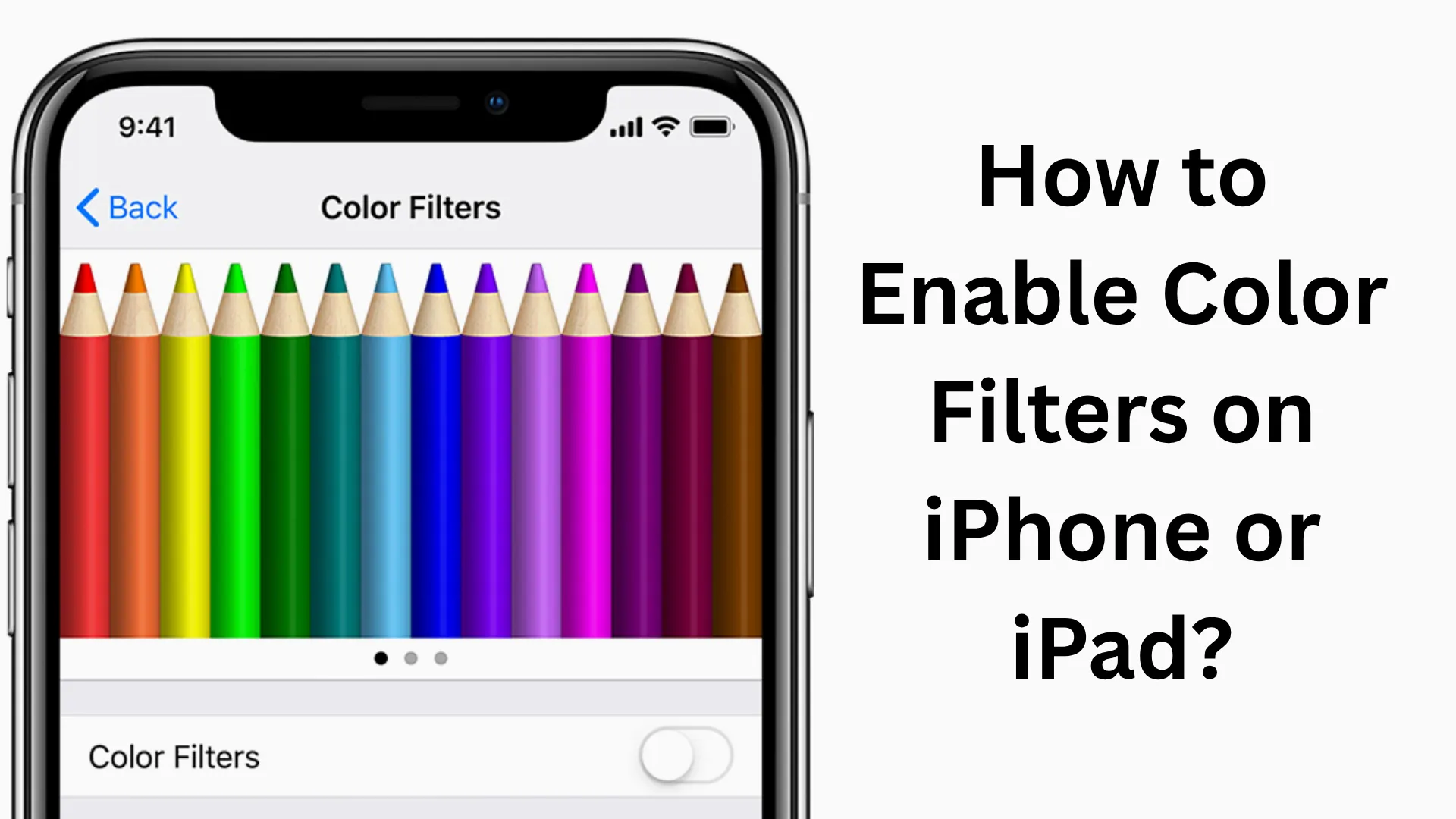
Color Filters is an accessibility feature that modifies the screen’s colors to provide users with a better visual experience. This feature is particularly useful for individuals who experience:
RedGreen Color Blindness
BlueYellow Color Blindness
Or generally have difficulty distinguishing colors
Additionally, this feature can be used to make the screen display more comfortable for the eyes.
How to Enable Color Filters on iPhone or iPad
You can easily turn on Color Filters by following the steps outlined below:
Step 1: Open the Settings App
First, open the Settings app on your iPhone or iPad.
Step 2: Go to Accessibility
Scroll down within Settings and tap on the Accessibility option.
Step 3: Select Display & Text Size
Now, tap on the Display & Text Size option.
Step 4: Tap on Color Filters
Here, you will see the Color Filters option; tap on it.
Step 5: Enable Color Filters
Now, toggle the Color Filters switch to the ON position.
Types of Color Filters
Once you enable Color Filters, you are presented with several options:
1. Grayscale
This renders the entire screen in black and white. It is useful for reducing eye strain.
2. Red/Green Filter
This option is designed for individuals who experience conditions such as Protanopia or Deuteranopia.
3. Green/Red Filter
This is useful for the second type of RedGreen Color Blindness.
4. Blue/Yellow Filter
This is designed for users affected by Tritanopia.
Also read: How to Open the DirectX Diagnostic Tool in Windows 11?
How to Adjust Intensity and Hue
Once you have enabled Color Filters, you can also customize the Intensity and Hue:
Intensity Slider: This allows you to increase or decrease the strength of the filter.
Hue Slider: This allows you to change the color tone.
This feature gives you the flexibility to fully customize your screen according to your preferences.
How to Quickly Turn Color Filters ON/OFF (Shortcut Method)
If you use Color Filters frequently, you can also set up a shortcut for them:
Steps:
1. Open Settings.
2. Go to Accessibility.
3. Scroll to the bottom and tap on Accessibility Shortcut.
4. Select Color Filters.
Now, you can instantly toggle them ON or OFF by pressing the Side Button (or Home Button) three times.
The Difference Between Color Filters and Night Shift
Many people confuse Color Filters with Night Shift, but the two are distinct:
| Feature | Color Filters | Night Shift |
| | | |
| Purpose | Aids in color recognition | Protects the eyes |
| Usage | Accessibility | Reduces Blue Light |
| Setting | Found in Accessibility | Found in Display & Brightness |
Benefits of Using Color Filters
Using Color Filters offers several advantages:
Enhanced visual experience
Helpful for users with color blindness
Reduced eye strain
Customization options
For Which Users is This Feature Most Useful?
This feature is particularly beneficial for the following groups:
Students who spend long periods looking at screens
Graphic designers who require color accuracy
Users with color vision deficiencies
Nighttime users who wish to give their eyes a rest
Troubleshooting: Are Color Filters Not Working? If Color Filters are not working correctly, keep the following points in mind:
Update iOS or iPadOS
Restart your device
Reset Accessibility settings
Ensure that no other Display Settings are conflicting
Advanced Tips: Smart Use of Color Filters
Combine with Reading Mode for a better experience
Use with Low Brightness to minimize eye strain
Test different filters and choose the one that works best for you
Also read: How to Download Torrent Files Using qBittorrent
Conclusion
In this guide, we explored in detail how to enable and use Color Filters on an iPhone or iPad. This feature serves not only as an accessibility tool but also provides an enhanced and more comfortable screen experience for every user. With the right settings, you can fully tailor your device to your preferences while also protecting your eyes.
FAQs (Frequently Asked Questions)
1. Where can I find Color Filters on an iPhone or iPad?
You can easily find Color Filters by navigating to Settings → Accessibility → Display & Text Size → Color Filters.
2. Are Color Filters available on all iOS versions?
Yes, this feature is available on most modern iOS and iPadOS versions. If it does not appear on your device, you should update your system software.
3. Why does the screen look different after enabling Color Filters?
This happens because Color Filters alter the screen’s colors to make color recognition easier or to reduce strain on the eyes.
4. Are Color Filters safe for the eyes?
Yes, this feature is completely safe and, in many cases, helps reduce eye strain.
5. Can I quickly toggle Color Filters ON/OFF?
Yes, by setting up an Accessibility Shortcut, you can instantly toggle the feature ON or OFF by triplepressing the Side button or Home button.
6. What is the difference between Color Filters and Night Shift?
Color Filters are used to improve color recognition, whereas Night Shift protects your eyes by reducing blue light emission.
7. Do Color Filters consume a lot of battery power?
No, this feature consumes very little battery power and has no significant impact on your device’s battery life.
8. Can I use Color Filters while playing games?
Yes, Color Filters work with any app or game, and you can use them while gaming as well.
9. Can I customize Color Filters?
Yes, you can adjust the Intensity and Hue settings to suit your preferences.
10. What should you do if Color Filters is not working?
Restart the device
Update iOS
Check Accessibility settings
Reset settings if necessary
11. Is this feature useful for people with color blindness?
Yes, this feature is specifically designed for users with Color Vision Deficiency.
12. Can Color Filters and Dark Mode be used together?
Yes, both features can be used simultaneously, and doing so further enhances the screen experience.
13. Do color filters work on the iPad as well?
Yes, this feature is available on the iPad just as it is on the iPhone, and it functions in the same way.
14. Can Color Filters be turned off completely?
Yes, you can turn it OFF at any time by going to Settings.
15. Does this feature apply to all apps?
Yes, Color Filters applies systemwide, meaning its effects are visible across all apps and screens.