 By
ByWindows 11 has emerged as the most modern and intelligent operating system available today. We all use certain apps on our computers that require manual opening every time the PC starts up. Repeatedly opening apps wastes time and also hinders productivity. This is precisely why the “Startup Apps” feature in Windows 11 proves to be incredibly useful.
If you want your favorite browser, music player, WhatsApp, Microsoft Teams, Steam, Discord, or any other software to launch automatically the moment your computer turns on, Windows 11 offers several excellent options to make this happen.
In this comprehensive guide, we will explore in detail the 5 easiest, safest, and most effective methods for launching apps at startup in Windows 11.
What Are Windows 11 Startup Apps?
Startup Apps are applications that launch automatically as soon as Windows boots up. This feature is particularly useful for users who rely on the same set of apps on a daily basis.
For example:
Google Chrome
Spotify
Microsoft Teams
Slack
OneDrive
Discord
Antivirus Software
Adding these apps to your startup sequence accelerates your workflow and eliminates the need for manual opening.
Things to Consider Before Enabling Startup Apps
Keep the following important points in mind before adding apps to your startup list:
Adding too many apps to the startup list can slow down your PC.
Include only essential applications in your startup list.
Avoid automatically launching heavy software on systems with low RAM.
Periodically review and manage your startup programs.
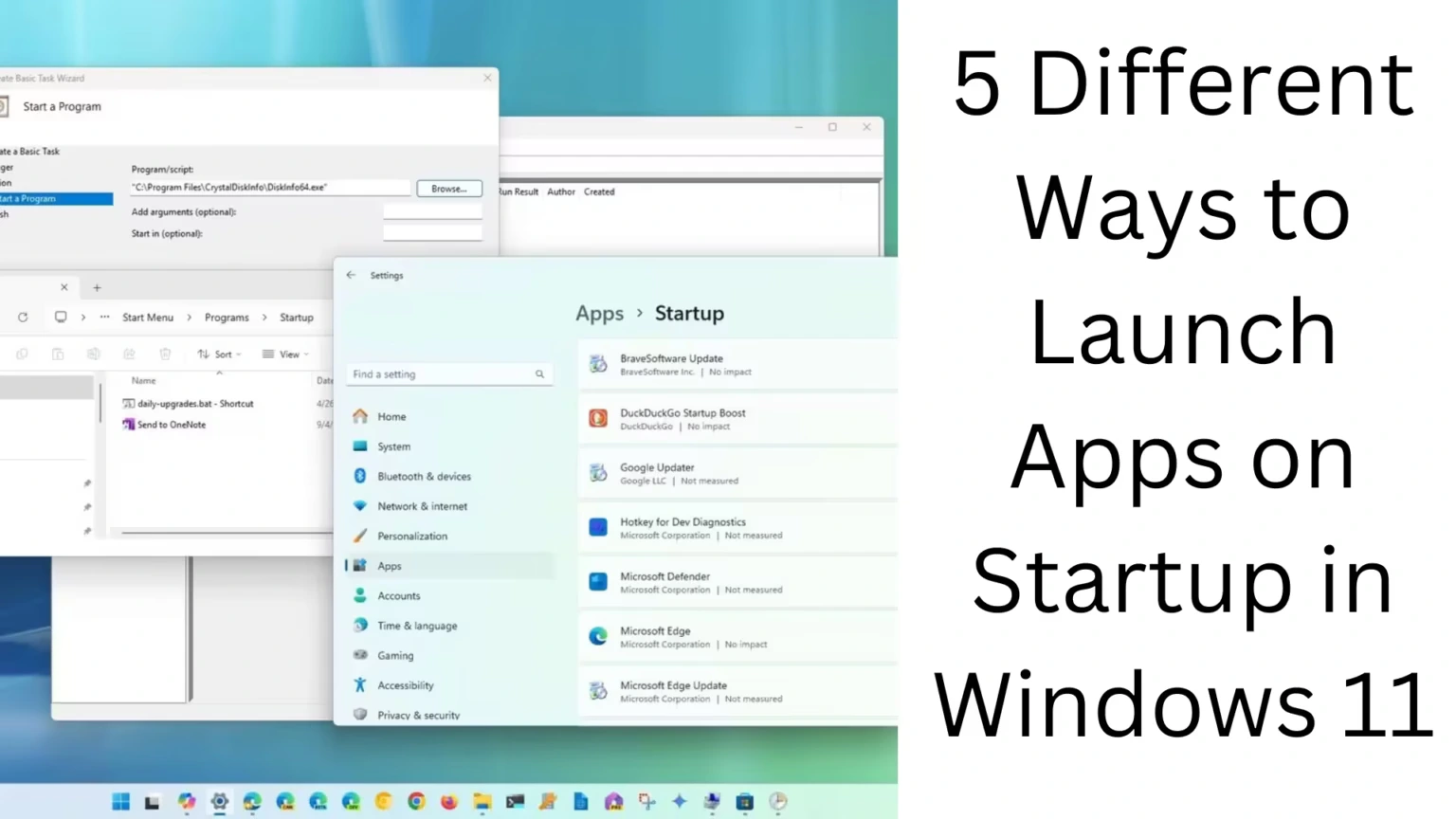
1. Enable Startup Apps via Windows Settings
This is the easiest and most official method available in Windows 11.
How to Enable Startup Apps
Step 1: Open Settings
Press Windows + I.
Step 2: Go to the Apps Section
Click on “Apps” in the left sidebar.
Step 3: Select the Startup Option
Now, click on “Startup.”
Step 4: Enable an App
Toggle the switch to the “ON” position next to the app you wish to launch at startup. Benefits of This Method
Beginner-friendly
Safe and easy
Can be used without any technical knowledge
When to Use It
If you simply want to add common apps—such as browsers, chat apps, or cloud storage apps—to your startup, this is the best method.
2. Use the Startup Folder
Windows 11 features a hidden Startup Folder; placing a shortcut inside it causes the corresponding app to launch automatically.
This method is quite popular among advanced users.
How to Open the Startup Folder
Step 1: Open the Run Dialog Box
Press Windows + R.
Step 2: Enter This Command
“`bash
shell:startup
“`
Step 3: Press Enter
The Startup Folder will now open.
How to Add an App
Copy the shortcut for the app you wish to add to startup.
Paste it into the Startup Folder.
Now, the next time Windows starts up, the app will launch automatically.
Also read: How to Run Windows Programs at a Higher Priority?
Benefits of This Method
Works with almost every desktop program
Offers manual control
Custom apps can also be added
When to Use It
If an app does not appear in the Settings menu, the Startup Folder is the best alternative.
3. Manage Startup Apps via Task Manager
Windows 11’s Task Manager provides a powerful way to enable and disable startup apps.
How to Enable Startup Apps via Task Manager
Step 1: Open Task Manager
Press Ctrl + Shift + Esc.
Step 2: Go to the Startup Apps Tab
Select “Startup apps” from the left sidebar.
Step 3: Select an App
Click on the program you wish to enable.
Step 4: Click the Enable Button
Click on the “Enable” option located at the top.
Check Startup Impact
Task Manager also displays the degree of impact each app has on boot time.
Categories:
Low Impact
Medium Impact
High Impact
Benefits of This Method
Allows you to monitor startup performance
Helps identify issues causing slow boot times
Disabling startup apps is easy
4. Add Startup Apps via Registry Editor
This method is intended for advanced users. Using the Registry Editor, you can configure any program to launch automatically at startup. Warning
Making incorrect changes to the Registry can adversely affect the system. Therefore, proceed with caution.
How to Use the Registry Method
Step 1: Open Run
Press Windows + R.
Step 2: Enter this Command
“`bash
regedit
“`
Step 3: Navigate to this Path
“`bash
HKEY_CURRENT_USER\Software\Microsoft\Windows\CurrentVersion\Run
“`
Step 4: Create a New String Value
Right-click.
Select New → String Value.
Step 5: Add the App Path
Enter the full path of the application in the Value Data field.
Example:
“`bash
“C:\Program Files\Google\Chrome\Application\chrome.exe”
“`
Advantages of this Method
Deep system-level control
Allows adding even hidden programs to Startup
Useful for Enterprise users
When to Use
When other methods do not work, or when you require advanced customization.
5. Use Task Scheduler
Task Scheduler is an incredibly powerful automation tool built into Windows. With its help, you can launch any application at system startup, user login, or at a specific scheduled time.
How to Set Startup Apps Using Task Scheduler
Step 1: Open the Start Menu
Search for: Task Scheduler
Step 2: Select “Create Task”
Click on “Create Task” in the right sidebar.
Step 3: Name the Task (General Tab)
Enter a name for the task.
Step 4: Set a Trigger
Go to Triggers → New
Select the option: “At log on”
Step 5: Set an Action
Go to Actions → New
Select the Program Path
Step 6: Save
Click OK.
Now, the app will launch automatically every time you log in.
Advantages of This Method
Maximum flexibility
Ability to set a delayed startup
Can launch apps with administrative privileges
Also read: How to Disable Animation Effects on Windows 11?
Why Do Startup Apps Slow Down a PC?
When too many apps launch simultaneously:
CPU usage increases
RAM consumption rises
The load on the SSD/HDD increases
Windows boot time slows down
Best Tips for Optimizing Startup Apps
Keep Only Essential Apps
It is not advisable to add every program to your startup list.
Disable Heavy Software
Avoid automatically launching video editing or gaming software.
Perform Regular Cleanup
Check your startup programs every month.
Remove High-Impact Apps
Minimize the number of apps listed as “High Impact” in the Task Manager.
How to Disable Startup Apps in Windows 11
If an app is causing issues or slowing down your PC, disabling it is easy.
Method:
Open Task Manager
Go to the “Startup apps” section
Select the app
Click “Disable”
What is the Startup Folder Location?
Current User Startup Folder
“`bash
C:\Users\YourName\AppData\Roaming\Microsoft\Windows\Start Menu\Programs\Startup
“`
All Users Startup Folder
“`bash
C:\ProgramData\Microsoft\Windows\Start Menu\Programs\StartUp
“`
Which Apps Should You Keep in Startup? Recommended Apps
Antivirus
Cloud Backup
Microsoft Teams
WhatsApp Desktop
OneDrive
Password Managers
Apps to Avoid
Heavy Games
Editing Software
Multiple Browsers
Unnecessary Updaters
Common Questions Regarding Windows 11 Startup Apps
Do Startup Apps Reduce Battery Life?
Yes, having too many background apps increases battery consumption.
Do Startup Apps Affect Internet Speed?
Some apps initiate internet synchronization upon startup, which can lead to increased bandwidth usage.
Will Removing Startup Apps Make My PC Faster?
Yes, removing unnecessary startup programs improves boot times.
Conclusion
Windows 11 offers several excellent methods for managing apps that launch at startup. For average users, the Settings app and Task Manager are the easiest options. Conversely, for advanced users, the Registry Editor and Task Scheduler provide greater control.
Proper startup management not only saves you time but also enhances overall system performance. Therefore, keep only essential apps in your startup list and periodically optimize your startup configuration.
FAQ – Frequently Asked Questions About Windows 11 Startup Apps
1. What are Startup Apps in Windows 11?
Startup Apps are programs that open automatically as soon as the computer starts up. This eliminates the need to open apps manually every time, allowing you to get to work faster.
2. How do I enable Startup Apps in Windows 11?
You can enable any supported app to launch at startup by navigating to Settings → Apps → Startup and toggling the app’s switch to the “ON” position.
3. Can Startup Apps slow down my PC?
Yes, if too many apps are enabled at startup, it can increase the Windows boot time and slow down overall system performance.
4. How do I disable Startup Apps?
Open Task Manager → Go to the “Startup Apps” section → Select the app you wish to disable → Click on “Disable.”
5. Can any software be added to the startup list?
Yes, with the help of the Startup Folder, Registry Editor, or Task Scheduler, almost any desktop program can be added to the startup list.
6. Where is the Startup Folder located in Windows 11?
Path to the Current User’s Startup Folder:
“`bash id=”3kg5t1″
C:\Users\YourName\AppData\Roaming\Microsoft\Windows\Start Menu\Programs\Startup
“`
7. How can I quickly open the Startup Folder?
Press Windows + R and enter the following command:
“`bash id=”z8m4h2″
shell:startup
“`
8. Do Startup Apps affect battery life?
Yes, having too many background startup apps running can drain a laptop’s battery more quickly.
9. Which apps should I keep in the startup list?
It is best to keep essential apps such as Antivirus software, Cloud Backup services, Microsoft Teams, OneDrive, and important communication apps enabled at startup.
10. Which apps should I avoid keeping in the startup list?
You should avoid adding heavy games, video editing software, and unnecessary updater programs to the startup list.
11. Do Startup Apps Slow Down Internet Speed?
Some apps initiate auto-syncing during startup, which can consume a significant amount of internet bandwidth.
12. Is It Safe to Manage Startup Apps via Task Manager?
Yes, Task Manager is an official Windows tool, and enabling or disabling startup apps through it is considered completely safe.
13. Is It Safe to Add Startup Apps Using the Registry Editor?
It is safe if done correctly; however, incorrect modifications can cause system issues. Therefore, caution is necessary.
14. Is Task Scheduler a Better Alternative for Startup Apps?
Yes, Task Scheduler offers advanced control and provides features such as delayed startup and administrative privileges.
15. Does Removing Startup Apps Speed Up the PC?
Yes, removing unnecessary startup programs improves boot speed and overall system performance.