 By
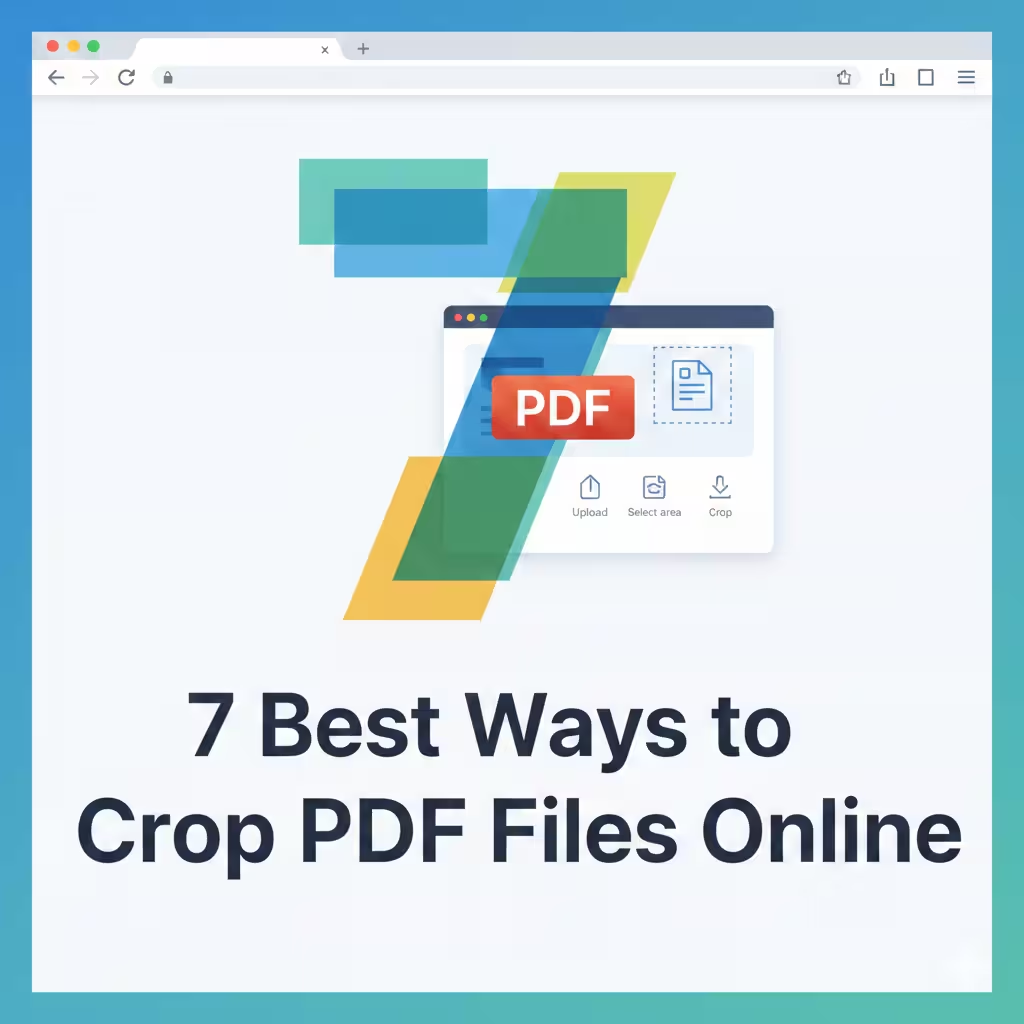
ByPDF is currently a popular format for sharing and securing documents. Whether it involves office documents, e-books, scanned papers, invoices, or presentations, PDF files are utilized everywhere. However, PDF pages often contain extra white borders, unnecessary content, incorrectly scanned areas, or superfluous margins. In such instances, cropping the PDF becomes essential.
With online PDF cropping tools, we can remove unwanted sections from a PDF page without installing heavy software. Listed below are simple and useful methods for cropping PDF files online.
What is PDF Cropping?
PDF cropping refers to removing a specific section of a PDF page or displaying only the essential part. This process is useful when:
Scanned documents contain extra borders
The PDF contains unnecessary blank space
You need to share only a specific section
You need to refine the layout for printing
You want to create a better document presentation
Cropping a PDF makes the file appear cleaner, more organized, and more polished.
1. Cropping PDFs with Smallpdf
Smallpdf is one of the most popular online PDF editing tools available. It features a simple interface, allowing users to crop PDFs in just a few clicks.
Key Features:
Drag-and-Drop Upload
Fast Processing
Cloud-Based Editing
Secure File Deletion
How to Use:
Open the website
Upload your PDF
Select the ‘Crop’ option
Select the required area
Click ‘Apply’ and download the file
This method is ideal for those who need to edit PDFs without requiring any technical expertise.
2. Cropping PDFs Online with ILovePDF
ILovePDF is a useful all-in-one tool for PDF management. It offers features such as PDF merging, splitting, compressing, and cropping.
Advantages:
Usable on both mobile and desktop devices
Fast server speeds
Multi-Page Editing
Intuitive UI
If you need to apply a consistent crop across a multi-page PDF—ensuring the same crop settings are applied to every single page—this platform proves to be highly effective. Usage Process
Upload PDF
Define Crop Area
Apply Settings to All Pages
Download New PDF
3. Cropping PDFs with Sejda PDF Editor
Sejda PDF Editor is useful for users who require not only cropping capabilities but also advanced PDF editing features.
Features
Browser-Based Editing
Text Editing Support
Annotation Tools
Custom Crop Area
Sejda’s greatest advantage is that it offers page-level control.
When to Use
Research Documents
Scanned Notes
Advanced PDF Editing
Professional Documents
Also read: How to Forget a WiFi Network on an iPhone?
4. How to Crop PDFs with PDFCandy
PDFCandy is known for its simple and fast PDF tools. Its interface is user-friendly, making it ideal for beginners.
Key Benefits
Free Access
No Registration Required
Easy Cropping
Cloud Support
If you are in a hurry and need to keep only a specific part of a PDF while removing the rest, this can be an excellent option.
Steps
Upload PDF
Select Crop Tool
Adjust Selected Area
Download Exported PDF
5. Cropping PDFs with Adobe Acrobat Online
When it comes to PDFs, Adobe Acrobat is the first name that comes to mind. Adobe’s online tool offers high quality and reliability.
Key Benefits of Adobe
Trusted Brand
High-Quality Output
Professional Editing
Secure Processing
Adobe Acrobat is an excellent choice for business and office documents.
How to Do It
Open Adobe Acrobat Online
Upload PDF
Select Edit/Crop Option
Save Changes
Download Final PDF
6. Cropping PDFs via DocHub
DocHub is renowned for PDF editing and digital signatures. This platform proves particularly useful if you need to perform other document editing tasks in addition to cropping.
Special Features
Google Drive Integration
Cloud Storage Support
PDF Annotation
Editing Tools
Many users prefer this platform for educational and professional purposes.
Usage Process
Import PDF
Select Crop Tool
Set Page Boundaries
Export Final File
7. Using Google Drive and Online Editors
Many people are unaware that PDF editors with Google Drive integration can also simplify the task of cropping PDFs.
Benefits of This Method
Cloud Access
Edit from Anywhere
Team Sharing
Easy Document Management
You can open a PDF directly from Google Drive and send it to the online editor to complete the cropping process.
Points to Keep in Mind When Cropping PDFs
PDF cropping is a simple process, but you should pay attention to a few key points to ensure optimal results.
1. Keep a Backup of the Original File
Save the original PDF before cropping so that it can be reused if needed.
2. Select the Correct Crop Area
An incorrect selection could result in the loss of important information.
3. Check the Print Preview
If the PDF is intended for printing, it is essential to check the preview after cropping.
4. Use a Secure Website
When uploading sensitive documents, it is crucial to choose a trustworthy platform.
Also read: How to View Apps by Battery Usage on iPhone?
Online PDF Cropping vs. Desktop Software
Both options have their own distinct advantages.
Feature | Online PDF Cropping | Desktop Software
Installation | None | Required
Ease of Use | Simple | Can be Technical
Speed | Internet-Dependent | Local Processing
Access | From Anywhere | Device-Based
For general use and quick solutions, online PDF cropping tools are generally more convenient.
Benefits of Cropping PDFs
Cropping a PDF makes the document look cleaner and easier to read.
Key Benefits
Documents appear more professional
Unnecessary margins are removed
The focus on important information is enhanced
Print quality is improved
Presentations become more visually appealing
Conclusion
Cropping PDF files online has become easier today than ever before. Whether you are a student, a professional, a designer, or an office user, by choosing the right online tool, you can make your PDF look clean and organized in just a few minutes. Smallpdf, iLovePDF, Sejda, PDFCandy, Adobe Acrobat, DocHub, and Google Drive-based editors are excellent options for cropping PDFs.
If you simply need to remove extra borders or blank space, online tools like Smallpdf or ILovePDF are sufficient. However, if more extensive editing is required, Adobe Acrobat or Sejda might be better choices. For the specific tasks of removing excess margins, cleaning up a PDF, or creating a professional-looking document, online PDF cropping tools offer a simple and fast solution.
Frequently Asked Questions (FAQs)
1. What does it mean to crop a PDF?
Cropping a PDF means removing unnecessary parts—such as blank margins, extra borders, or irrelevant content—from a PDF page so that only the essential sections remain visible.
2. Can I crop a PDF online for free?
Yes, many online tools—such as Smallpdf, ILovePDF, and PDFCandy—offer the ability to crop PDFs for free. However, some advanced features may require a premium subscription plan.
3. Is it necessary to install software to crop a PDF?
No, you do not need to install any software to use online PDF cropping tools. They function directly within your web browser.
4. Is it safe to crop PDFs online?
Reputable and popular PDF websites are generally secure and typically delete your files once the processing is complete. Nevertheless, you should always use a trusted platform when uploading sensitive documents.
5. Does cropping a PDF reduce its quality?
Generally, cropping a PDF does not affect its quality because it only alters the visible portion of the page, not the original quality of the content.
6. Can multiple PDF pages be cropped simultaneously?
Yes, many online tools allow you to apply crop settings to multiple pages or an entire PDF at once.
7. How do I crop a PDF using a mobile phone?
Open an online PDF editor website in your mobile browser, upload the PDF, select the crop option, and download the edited file. A separate app is not required for this.
8. What is the difference between PDF cropping and PDF trimming?
PDF cropping primarily adjusts the visible area of a page, whereas trimming is often associated with setting the final page dimensions for printing or design layouts.
9. Can scanned PDFs also be cropped?
Yes, PDF cropping is particularly useful for removing excess borders and whitespace from scanned documents.
10. What is the best online PDF cropping tool?
This depends on your specific needs. Smallpdf and ILovePDF are popular choices for speed and ease of use, while Adobe Acrobat and Sejda are considered excellent options for advanced editing.-