 By
ByWhat is Windows Recovery Environment (WinRE)?
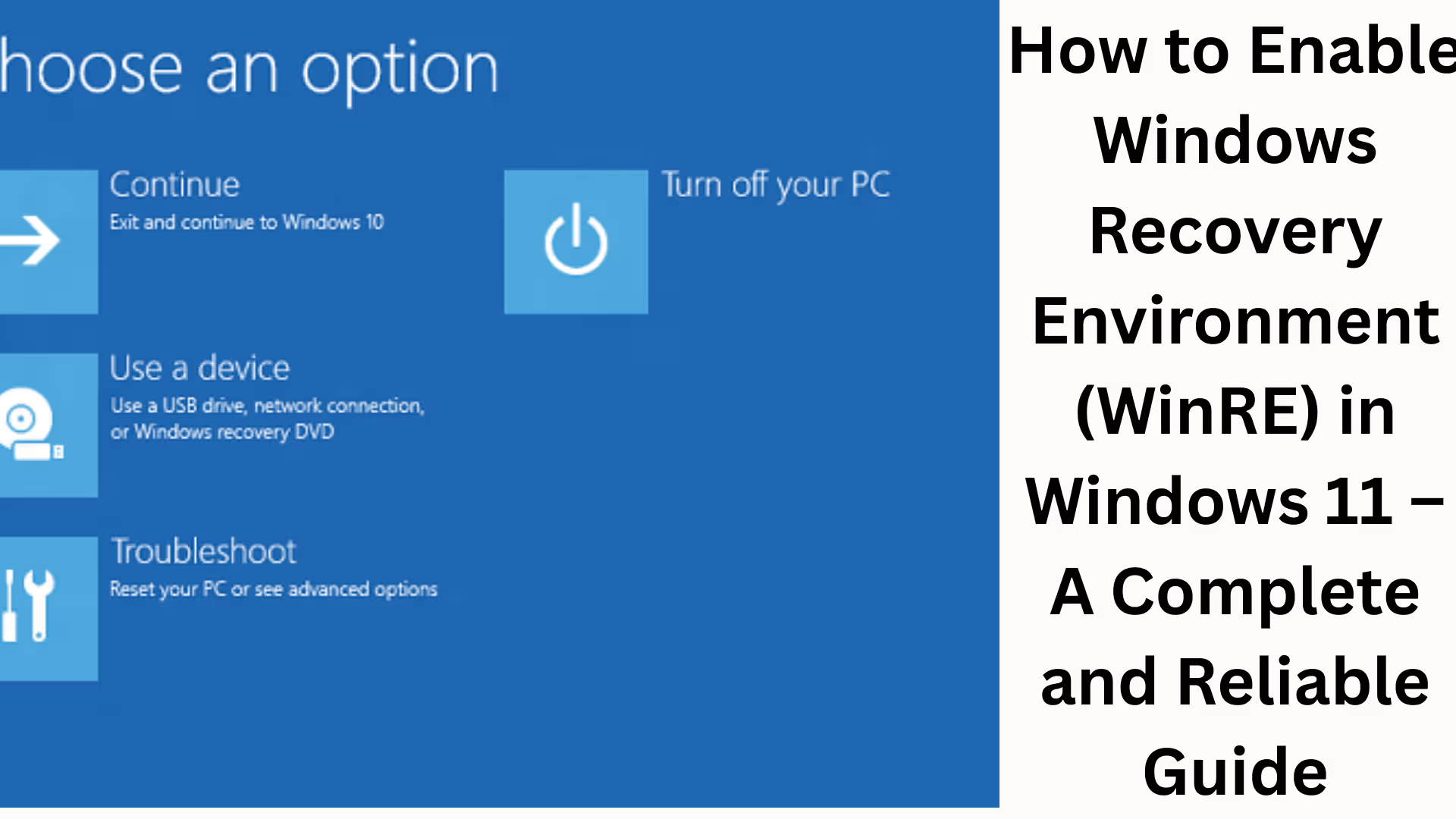
Windows Recovery Environment (WinRE) is a crucial recovery toolset in Windows 11 that helps safely recover your device from problems such as system crashes, boot failures, blue screen errors, startup loops, and corrupted system files. WinRE provides powerful tools like Startup Repair, System Restore, Reset This PC, Command Prompt, and Advanced Startup Options, which can help resolve issues without requiring a fresh Windows installation.
If WinRE is disabled for any reason, the recovery options in Windows 11 will not work. Therefore, it is essential to keep it enabled.
Why is it important to have WinRE enabled in Windows 11?
Quick recovery from boot errors
Restoring the system using a System Restore Point
Resetting Windows while keeping your data safe using Reset This PC
Easy access to Advanced Startup Options
Deep-level troubleshooting via the command line
We recommend that every Windows 11 user keep Windows Recovery Environment enabled on their system.
How to Check if WinRE is Enabled
First, it’s necessary to check if WinRE is already active on your system.
Method to Check WinRE Status using CMD
1. Go to the Start Menu
2. Open Command Prompt as Administrator
3. Type the following command:
“`bash
reagentc /info
“`
4. Press Enter
If the output shows “Windows RE status: Enabled,” then WinRE is already enabled.
If it shows “Disabled,” then it needs to be enabled.
Method 1: Enable WinRE using Command Prompt (Easiest Method)
This method is considered the most reliable and secure.
Step-by-Step Process
1. Open Command Prompt (Admin)
2. Run the following command:
“`bash
reagentc /enable
“`
3. Press Enter
4. You will see a “Operation successful” message.
Windows Recovery Environment is now enabled on your system. To verify:
“`bash
reagentc /info
“`
Method 2: Activate WinRE from Windows Recovery Settings
If you’re having trouble with the command, you can also activate recovery features from Windows Settings.
Procedure:
1. Open Settings
2. Go to System > Recovery
3. Click Restart Now next to Advanced Startup
4. The system will restart and go to the Windows Recovery Screen
This indicates that WinRE is working successfully.
Method 3: Enable WinRE using Group Policy Editor (For Pro users)
This method is especially useful for Windows 11 Pro and Enterprise users.
Steps:
1. Press Win + R
2. Type `gpedit.msc`
3. Navigate to:
“`
Computer Configuration > Administrative Templates > System > Recovery
“`
4. Double-click on “Allow system recovery options”
5. Set it to Enabled
6. Restart the system
Method 4: Enable WinRE using Registry Editor
This is for advanced users. Incorrect changes can damage the system.
Steps:
1. Win + R → `regedit`
2. Navigate to:
“`
HKEY_LOCAL_MACHINE\SYSTEM\CurrentControlSet\Control\Session Manager
“`
3. Check the BootExecute value
4. The default value should be:
“`
autocheck autochk
“`
5. Restart the system
WinRE not enabling? – Common problems and solutions
1. Recovery Partition Missing
If the Recovery Partition is deleted, WinRE will not enable.
Solution:
Select Repair Your Computer from Windows 11 Installation Media
Create a new Recovery Partition
2. Disk Error or File Corruption
Solution:
“`bash
sfc /scannow
DISM /Online /Cleanup-Image /RestoreHealth
“`
3. BitLocker Enabled
BitLocker can block WinRE. Solution:
First, suspend BitLocker.
Then run `reagentc /enable`.
Important Tools Available in WinRE
Startup Repair – Fixes boot problems
System Restore – Restores the system to a previous stable state
Reset This PC – Resets Windows while keeping your files
Command Prompt – For advanced troubleshooting
UEFI Firmware Settings – Accesses BIOS/UEFI
How to Open Recovery Mode from WinRE in Windows 11
Force shutdown 2–3 times using the Power button while the system is booting
Or Shift + Restart
Or Settings > Recovery > Advanced Startup
Pro Tips for Windows 11 Users
Always create a Recovery Drive
Check WinRE Status after system updates
Do not delete the Recovery Partition during Disk Cleanup
WinRE works faster if you are using an SSD
Conclusion
The Windows Recovery Environment (WinRE) is an essential safety net for Windows 11. Keeping it enabled protects your system from data loss, boot failures, and critical errors. Using the methods described above, you can easily enable WinRE in Windows 11 and keep your system fully prepared for future problems.
Want to grow your website organically? Contact us now
FAQ – Frequently Asked Questions about Enabling Windows Recovery Environment (WinRE) in Windows 11
Question 1: What is Windows Recovery Environment (WinRE)?
Answer: Windows Recovery Environment (WinRE) is an in-built recovery system in Windows 11 that helps recover Windows from problems such as boot failures, system crashes, blue screen errors, and corrupted files.
Question 2: How to check if WinRE is enabled or disabled?
Answer: Open Command Prompt in Administrator mode and run the command `reagentc /info`.
If “Windows RE status: Enabled” is displayed, WinRE is enabled, and if “Disabled” is displayed, it is disabled.
Question 3: How to enable WinRE in Windows 11?
Answer: Open Command Prompt (Admin) and run this command:
`reagentc /enable`
WinRE will be enabled after the command is successful.
Question 4: WinRE is not enabling, what should I do?
Answer:
First, run the commands `sfc /scannow` and `DISM /Online /Cleanup-Image /RestoreHealth`.
If BitLocker is enabled, temporarily suspend it.
Check if the Recovery Partition exists.
Question 5: What are the disadvantages of WinRE being disabled?
Answer: When WinRE is disabled, important recovery tools like Advanced Startup Options, Startup Repair, System Restore, and Reset This PC do not work, making it difficult to repair Windows in case of a system crash.
Question 6: Does enabling WinRE delete data?
Answer: No, enabling WinRE does not delete any data. It is a completely safe process.
Question 7: Can WinRE be enabled in Windows 11 Home?
Answer: Yes, WinRE can be enabled in all versions of Windows 11 – Home, Pro, and Enterprise.
Question 8: Are files safe when resetting Windows 11 using WinRE?
Answer: When resetting, if you choose the “Keep my files” option, your personal files remain safe; only system settings and apps are removed.
Question 9: Can WinRE be disabled automatically?
Answer: Yes, sometimes WinRE can be disabled due to incorrect Disk Cleanup, third-party tools, or deletion of the Recovery Partition.
Question 10: Is it necessary to keep WinRE enabled?
Answer: Absolutely, keeping WinRE enabled is essential for every Windows 11 user, as it is the most robust way to protect the system from serious problems.