 By
ByWhat is a Windows System Restore Point?
In the Windows operating system, System Restore is an extremely useful feature that creates and maintains backups of critical system files, settings, drivers, and the registry. Whenever a major issue arises within the system—such as a faulty update, a driver error, a virus infection, or a system crash—we can use a Restore Point to revert the computer to a previous, stable state.
However, over time, these Restore Points can begin to consume a significant amount of storage space. This issue becomes particularly pronounced on systems equipped with SSDs or laptops with limited storage capacity. Consequently, it becomes necessary to delete old and unnecessary Restore Points.
In this article, we will explore in detail how to delete System Restore Points in Windows 11, Windows 10, and other versions of Windows.
Benefits of Deleting System Restore Points
1. Frees Up Disk Space
Old Restore Points can occupy several gigabytes (GB) of storage space. Removing them creates additional free space on the system drive.
2. Improves System Performance
System performance can slow down when the drive becomes nearly full. Deleting Restore Points reduces the load on the drive.
3. Removes Unnecessary Backups
Often, older Restore Points no longer serve any useful purpose. In such cases, it is best to remove them.
How to Delete All System Restore Points in Windows
Method 1: Delete Restore Points Using Disk Cleanup
This is the easiest and safest method.
Step 1: Open Disk Cleanup
Open the Start Menu
Search for: Disk Cleanup
Open the app
Step 2: Select the System Drive
Typically, select the C Drive
Click OK
Step 3: Select “Clean up system files”
Click on the “Clean up system files” option located at the bottom
Select the C Drive again
Step 4: Go to the “More Options” tab
Now, click on the “More Options” tab located at the top
Step 5: “System Restore and Shadow Copies” Section
A “Clean up” button will appear here
Click on it
Step 6: Confirm Deletion
Windows will ask if you want to remove old Restore Points
Click Delete
Now, all old Restore Points will be removed, and only the most recent Restore Point will remain.
Also read: How to Manually Uninstall Windows 11 Updates?
How to Delete Restore Points from System Protection Settings
This method is useful if you wish to completely remove all Restore Points.
Step-by-Step Process
1. Open the Run Dialog
Press Windows + R on your keyboard
2. Type this command
“`powershell
SystemPropertiesProtection
“`
3. Press Enter
The System Properties window will now open.
4. Select the “System Protection” tab
You will see all your drives listed here.
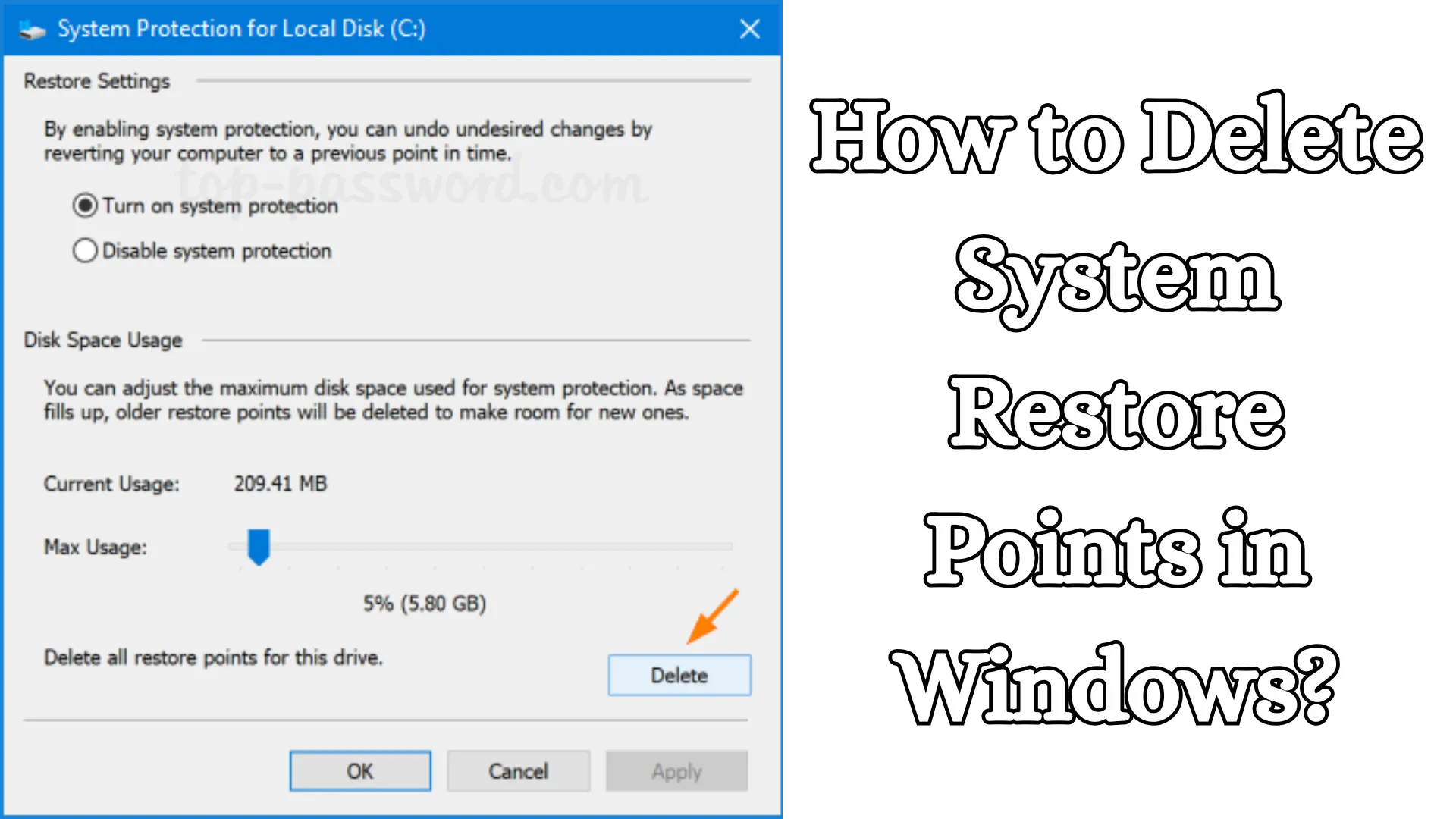
5. Click “Configure”
Select the drive for which you want to remove Restore Points, then click Configure.
6. Press the “Delete” button
You will find the “Delete” option at the bottom
Click it to confirm
Now, all Restore Points for that specific drive will be removed.
How to Delete System Restore Points via Command Prompt
For advanced users, the Command Prompt is the fastest method.
Remove All Restore Points via CMD
Step 1: Open CMD as Administrator
Go to the Start Menu
Search for: cmd
Right-click → Run as administrator
Step 2: Run this command
“`cmd
vssadmin delete shadows /all
“`
Step 3: Confirm
Press Y
Press Enter
Now, all Shadow Copies and Restore Points will be removed.
Delete Restore Points via PowerShell
Using PowerShell is also quite simple.
PowerShell Command
“`powershell
Get-ComputerRestorePoint
“`
This command will display all existing Restore Points. To delete a specific Restore Point:
“`powershell
vssadmin delete shadows /for=c: /oldest
“`
This deletes the oldest Restore Point.
How to Delete Only Old Restore Points
If you do not wish to delete all Restore Points, but rather only the older ones, Disk Cleanup is the best option, as it preserves the most recent Restore Point.
Benefits
System protection is maintained
The latest Restore Point remains available
Storage space is also freed up
How to Delete Restore Points in Windows 11
In Windows 11, the process is nearly identical to that of Windows 10.
Quick Steps
1. Open Start
2. Search for: Create a Restore Point
3. Open the System Protection tab
4. Select Configure
5. Click Delete
This method works in both Windows 11 Home and Pro editions.
How to Delete Restore Points in Windows 10
Windows 10 users can utilize the method outlined below.
Fast Method
Press Windows + R
Type `cleanmgr`
Open the More Options tab
Select “Clean up” within the System Restore section
How to Reduce the Restore Point Storage Limit
If you do not wish to delete Restore Points entirely but would like to reduce the amount of storage they consume, you can lower the Storage Limit.
How to Do It
1. Open System Protection
2. Click Configure
3. Lower the “Max Usage” slider
Now, Windows will utilize less storage space, and older Restore Points will be automatically removed on an ongoing basis.
Things to Consider Before Deleting Restore Points
1. Safeguard Important Restore Points
If your system is stable, ensure you preserve the most recent Restore Point.
2. Always Create a Backup
It is a safe practice to create a backup before making any major changes to your system settings.
3. Delete Older Restore Points in Case of a Virus Infection
Often, viruses can embed themselves within Restore Points. In such instances, it may be necessary to delete all Restore Points.
How to Disable System Restore
If you wish to completely disable the Restore Point feature:
Steps
1. Open System Protection.
2. Select the specific Drive.
3. Click Configure.
4. Select Disable system protection.
5. Click Apply.
Windows will now stop creating new Restore Points.
What to Do If a Restore Point Won’t Delete?
Users sometimes encounter difficulties when trying to delete Restore Points. The following reasons may be behind this issue:
Possible Causes
Lack of Administrator Permissions
Disabled Windows Services
Corrupted Shadow Copies
Disk Errors
Solutions
1. Use an Administrator Account
Always run CMD (Command Prompt) or PowerShell using the “Run as Administrator” option.
2. Run a Disk Check
“`cmd
chkdsk /f
“`
3. Delete in Safe Mode
Deleting Restore Points while in Safe Mode is often a more effective approach.
Is It Safe to Delete Restore Points?
Yes, under normal circumstances, deleting Restore Points is safe. However, keep in mind that once a Restore Point is deleted, you will no longer be able to restore your system to that specific previous state.
Therefore, always ensure you have at least one recent and reliable Restore Point available.
Also read: How to Adjust Left and Right Audio Balance in Windows 11?
Conclusion
System Restore Points in Windows are crucial for system security; however, over time, they can consume a significant amount of storage space. If your system is slowing down or you are running low on disk space, deleting older Restore Points is an excellent solution.
In this guide, we have covered the entire process of deleting Restore Points in detail, utilizing various key methods such as Disk Cleanup, System Protection, Command Prompt, and PowerShell. Properly managing your Restore Points helps keep your Windows system running faster, more stably, and in a more organized manner.
Frequently Asked Questions (FAQs)
1. What is a System Restore Point in Windows?
A System Restore Point is a backup feature in Windows that saves a snapshot of system files, settings, and drivers, allowing you to revert the system to a previous working state in the event of a problem.
2. Is it safe to delete System Restore Points?
Yes, generally speaking, it is safe to delete Restore Points. However, once deleted, you will no longer be able to revert your system to a previous restore state.
3. How do I delete Restore Points in Windows 11?
In Windows 11, search for “Create a Restore Point” in the Start Menu, then click on System Protection → Configure → Delete.
4. Can Restore Points be removed using Disk Cleanup?
Yes, the Disk Cleanup tool allows you to easily remove older Restore Points, while the most recent Restore Point remains intact.
5. How much storage do Restore Points consume?
This depends on your specific system and settings. In some cases, Restore Points can consume anywhere from 5GB to 20GB or more of storage space.
6. Can all Restore Points be deleted at once?
Yes, you can delete all Restore Points simultaneously using either the System Protection settings or the Command Prompt.
7. What is the command to delete Restore Points via CMD?
“`cmd id=”faq01″
vssadmin delete shadows /all
“`
This command deletes all Shadow Copies and Restore Points.
8. Does Windows automatically delete old Restore Points?
Yes, Windows automatically deletes older Restore Points once the designated storage limit has been reached.
9. Is it possible to delete just a single Restore Point?
This functionality is not available through the standard Windows interface; however, specific Restore Points can be removed using advanced command-line tools.
10. What to do if Restore Points are not deleting?
In such a situation, use Administrator permissions, check the disk for errors, or boot into Safe Mode to delete the Restore Points.
11. Is it advisable to keep System Restore enabled on an SSD?
Yes, System Restore is useful on an SSD as well; however, it is generally considered better to keep the storage usage limit low.
12. What is the easiest way to create a Restore Point?
Search for “Create a Restore Point” in the Start Menu, then click the “Create” button to generate a new Restore Point.
13. Can viruses be saved within Restore Points?
Yes, certain malware and viruses can be saved within Restore Points. In such cases, it may be necessary to delete all existing Restore Points.
14. How do I turn off System Restore?
Open System Protection Settings → Select the drive → Click “Configure” → Select the “Disable System Protection” option.
15. Does deleting Restore Points remove personal files?
No, deleting Restore Points does not delete your personal files, photos, videos, or documents.