
 By
ByWindows 11 is a modern and powerful operating system, but over time, a lack of storage space becomes a common problem. Unnecessary files, temporary data, old updates, and unused apps gradually fill up your system’s storage. In this article, we present in detail the most effective, safe, and permanent ways to free up storage space in Windows 11, so that your system remains fast, stable, and smooth.
Main Reasons for Full Storage in Windows 11
Accumulation of temporary files
Old Windows Update files
Unused apps and software
Unnecessary data in the Downloads folder
Large files remaining in the Recycle Bin
System cache and log files
Considering all these reasons, we are providing step-by-step solutions below.
Automatic Storage Cleanup using Storage Sense
Storage Sense is a smart feature of Windows 11 that automatically frees up storage by deleting unnecessary files.
How to enable Storage Sense
1. Open Settings
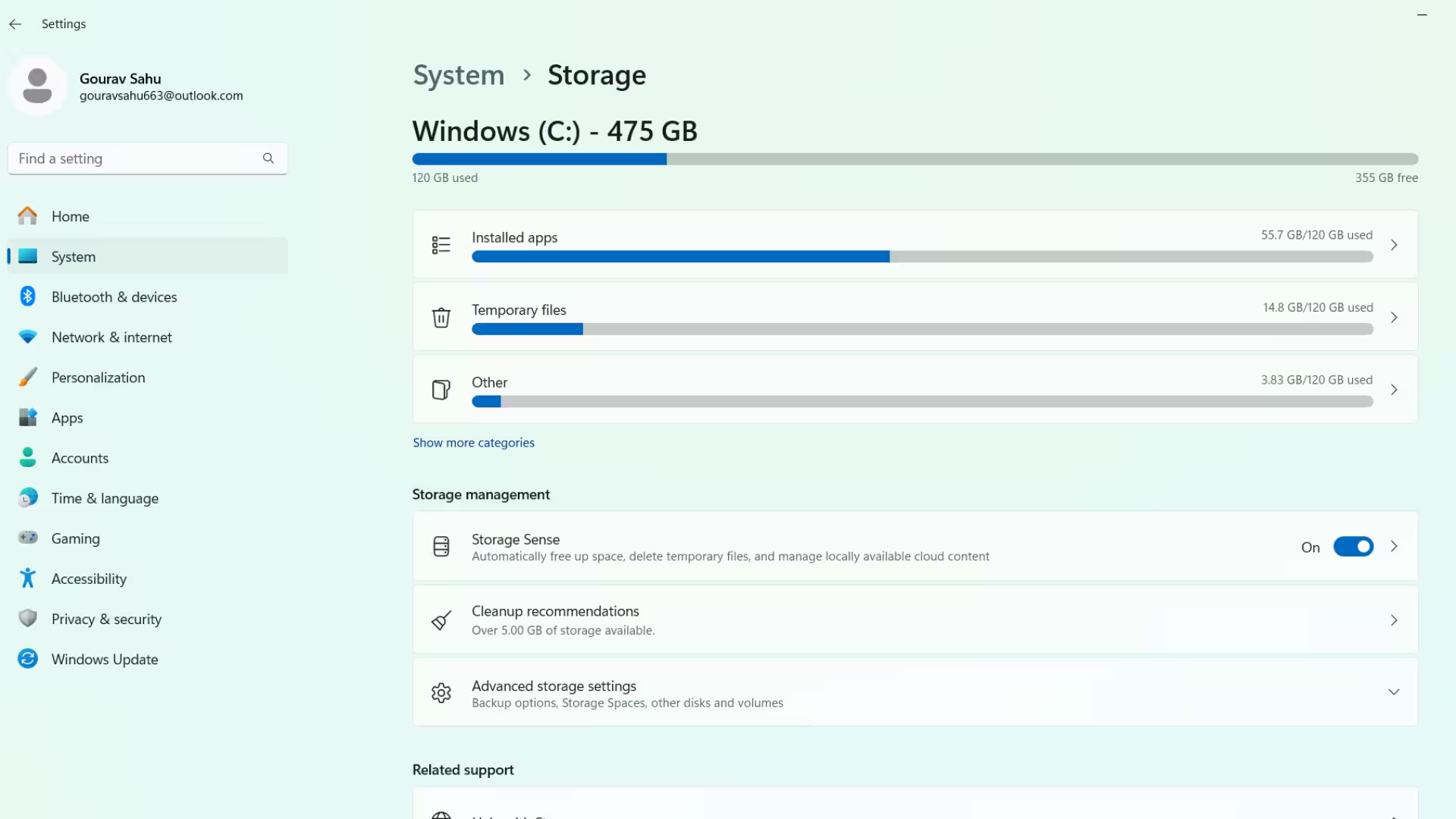
2. Go to System > Storage
3. Turn ON Storage Sense
4. Click on Configure Storage Sense and choose the settings according to your needs
Benefits:
Temporary files are automatically deleted
Old files in the Recycle Bin are removed
Unnecessary files in the Downloads folder are cleaned up
Manually Delete Temporary Files
Temporary files in Windows 11 can occupy several GB of space.
Steps to delete Temporary Files
1. Settings > System > Storage
2. Click on Temporary Files
3. Select all unnecessary options
4. Click on Remove Files
This method is very effective in freeing up storage space immediately.
Proper Use of the Disk Cleanup Tool
Although it’s an old tool, it is still very effective today.
How to run Disk Cleanup
1. Type Disk Cleanup in the search bar
2. Select the drive you want to clean
3. Click on Clean up system files
4. Select Windows Update Cleanup and other options
5. Click OK
This method helps in removing large system files. Uninstall Unnecessary Apps and Programs
Many apps remain installed that we don’t use for months.
How to remove apps:
1. Settings > Apps > Installed Apps
2. Sort apps by size
3. Uninstall unnecessary apps
Tip: Remove large games and trial software first.
Organize your Downloads Folder
The Downloads folder often consumes the most storage space.
Delete old ZIP, ISO, and EXE files
Move important files to an external drive
Delete duplicate files
By adopting this habit, we can regularly save storage space.
Completely Empty the Recycle Bin
Files in the Recycle Bin continue to occupy space until they are emptied.
How to empty the Recycle Bin:
Right-click on the Recycle Bin on the Desktop
Click on Empty Recycle Bin
Note: This process is permanent.
Use Cloud Storage Smartly
Windows 11 has OneDrive integration.
Store large files in the cloud
Use the “Free up space” option
Keep local storage free
This method is especially useful for laptop and SSD users.
Remove Old Windows Update Files
After Windows updates, old files remain in the system.
Remove them via Disk Cleanup
Check in Storage > Temporary Files
This process can free up several GB of space.
Manage System Restore Points
System Restore Points also consume storage.
How to reduce Restore Points:
1. Search for System Protection
2. Click on Configure
3. Reduce Max Usage or delete old Restore Points
Identify and Remove Large Files
Windows 11 has a storage analysis feature.
Settings > Storage
View the Large Files section
Delete unnecessary large files
External Storage and SSD Optimization
Store large media files on an external HDD
Keep only the OS and essential software on the SSD
Regular cleanup maintains SSD performance
Keep Windows 11 Light and Fast
Regularly:
Keep Storage Sense ON
Remove unnecessary files
Keep apps updated
This will not only free up storage but also improve the speed and performance of Windows 11.
Conclusion
Freeing up storage space in Windows 11 is not a difficult task; it simply requires the right methods and regular maintenance. By following all the steps mentioned above, you can easily free up 10GB to 50GB of storage space and keep your system running fast for a long time.
Are you searching for the best hosting plan? Click now and get 20% off
Frequently Asked Questions (FAQ)
Question 1: Why does storage fill up so quickly in Windows 11?
The main reasons for storage filling up quickly in Windows 11 are temporary files, old Windows Update files, unnecessary apps, data accumulated in the Downloads folder, and files in the Recycle Bin. Not performing regular cleanup exacerbates this problem.
Question 2: What is Storage Sense and how does it work?
Storage Sense is a built-in feature of Windows 11 that automatically frees up storage space by deleting temporary files, old files in the Recycle Bin, and unnecessary system data. It can be enabled from Settings > System > Storage.
Question 3: Is there any harm in deleting temporary files?
No, deleting temporary files does not harm the system. These files are only for temporary use, and deleting them improves Windows 11’s performance.
Question 4: What is the difference between Disk Cleanup and Storage Sense?
Disk Cleanup is a manual tool where you select and delete files yourself, while Storage Sense automatically cleans up storage periodically. Using both is recommended for better results.
Question 5: What is Windows Update Cleanup?
When Windows updates, old update files remain on the system. Windows Update Cleanup removes these old and unnecessary update files, freeing up several GB of storage.
Question 6: Which apps consume the most storage?
Typically, games, video editing software, design tools, and trial programs occupy the most storage space. They can be easily identified by sorting the Installed Apps section by size.
Question 7: Is it necessary to empty the Recycle Bin?
Yes, files in the Recycle Bin continue to consume storage until it is emptied. Regularly emptying it is important.
Question 8: Can storage be saved using OneDrive?
Absolutely. By using OneDrive Cloud Storage, large files can be stored in the cloud, and the “Free up space” option can save storage on your local drive.
Question 9: Do System Restore Points consume storage?
Yes, System Restore Points consume storage space. If too many restore points have been created, you can free up extra space by managing or deleting them.
Question 10: How much free storage is necessary in Windows 11?
For better performance, you should keep at least 15%–20% of your storage free. This allows system updates, apps, and background processes to run smoothly without interruption.
Question 11: Does a full SSD slow down performance?
Yes, if an SSD is almost full, its read/write performance can be affected. Therefore, it’s important to always maintain sufficient free space on your SSD.
Question 12: How to find large files in Windows 11?
You can easily identify and remove large files by going to Settings > System > Storage and accessing the Large Files section.
Question 13: How often should I clean my storage?
For a better experience, you should clean your storage at least once a month, and always keep Storage Sense turned on.
Question 14: Are third-party cleaners necessary?
No, Windows 11’s built-in tools like Storage Sense and Disk Cleanup are perfectly sufficient for freeing up storage space.
Question 15: Does freeing up storage space increase Windows 11 speed?
Yes, removing unnecessary files leads to a noticeable improvement in Windows 11 speed, boot time, and overall performance.








I’ve been struggling with slowdowns due to storage issues on my Windows 11 system. The part about old Windows Update files really hit home, I’ll be sure to clean that up. Thanks for the useful insights!