 By
ByWindows 11 gives users complete freedom to customize their desktop experience. But sometimes, you set your favorite wallpaper, and someone else changes it—whether it’s a family member, a friend, or a colleague at your office. If you want to lock your wallpaper so that no one can change it, this detailed guide is for you.
In this article, we will discuss all the effective, professional, and secure methods to prevent wallpaper changes in Windows 11, which you can easily implement on your computer.
Why is it important to lock your wallpaper in Windows 11?
Your wallpaper is your identity. Some people prefer to lock it for branding purposes, some for religious reasons, and many for personal privacy.
Locking your wallpaper:
Maintains a professional look on office systems
Protects personal photos or private data
Prevents accidental changes by children
Provides better system administration control
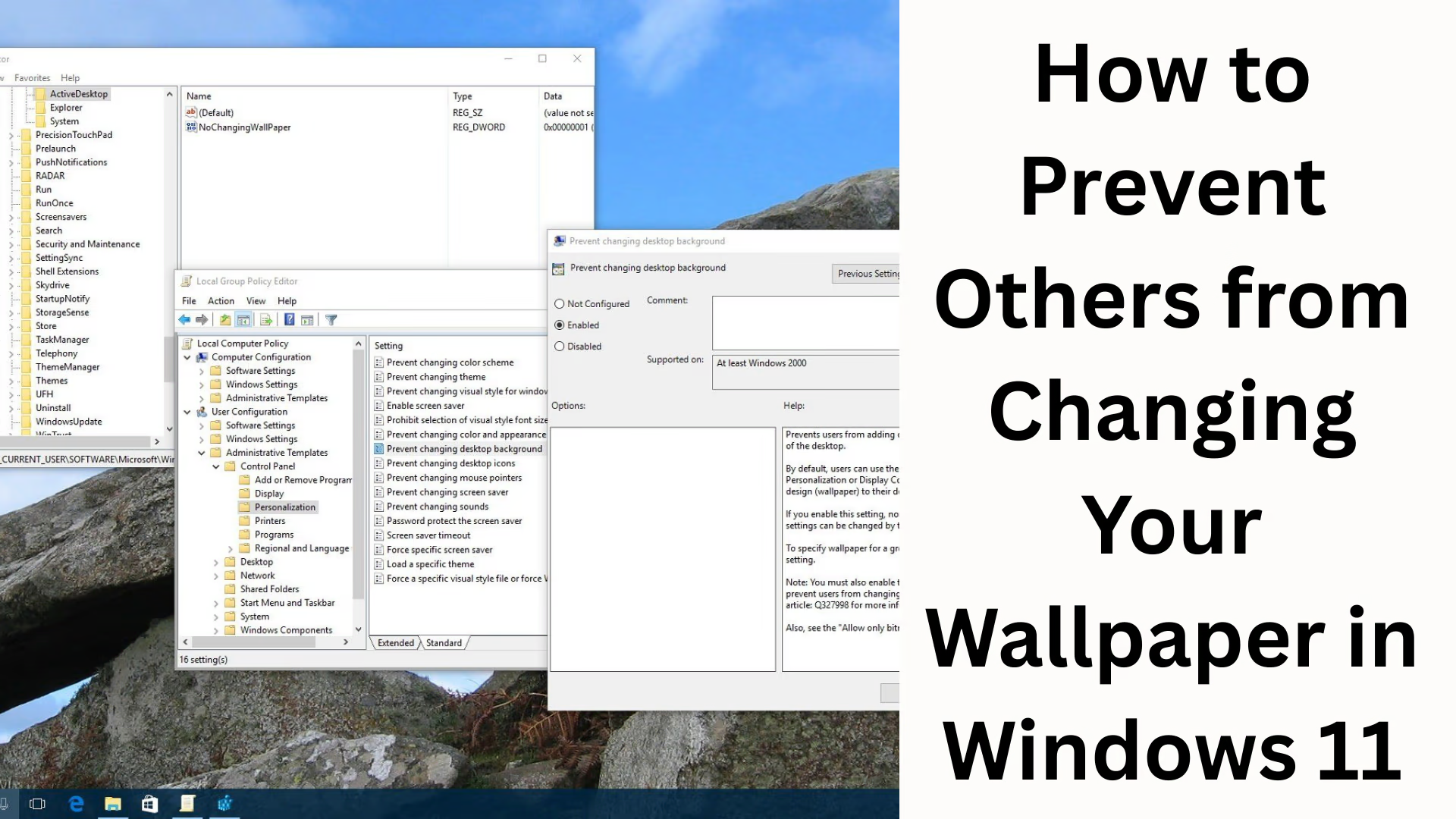
Method 1: Disable Wallpaper Changes using Group Policy Editor (Pro/Enterprise Users)
This method is only for Windows 11 Pro, Enterprise, or Education versions.
Steps
1. Press Windows + R
2. Type → `gpedit.msc`
3. Press Enter
4. Navigate to this path:
“`
User Configuration > Administrative Templates > Control Panel > Personalization
“`
5. Double-click on Prevent changing desktop background
6. Select Enabled
7. Click Apply → OK
Now, no user will be able to change the wallpaper.
If someone tries, the options will appear disabled.
Method 2: Lock Wallpaper using Registry Editor (Works on all Windows versions)
This method is best for Windows Home users. Step-by-Step Guide
1. Press Windows + R
2. Type `regedit` → Enter
3. Navigate to this path:
“`
HKEY_CURRENT_USER\Software\Microsoft\Windows\CurrentVersion\Policies
“`
4. If the ActiveDesktop and System folders do not exist in Policies, create them:
Right-click → New → Key → ActiveDesktop
Right-click → New → Key → System
5. Go to the System folder → Right-click → New → DWORD (32-bit)
Name it → `Wallpaper`
Value → Enter the file path of the wallpaper
6. Create another DWORD:
Name → `WallpaperStyle`
Value →
2 = Stretch
6 = Fit
10 = Fill
7. Create the final DWORD:
Name → `NoChangingWallpaper`
Value → `1`
Restart your computer after setting this.
Now no one will be able to change the wallpaper.
Method 3: Permanently Set a Specific Wallpaper
If you want a fixed wallpaper to be automatically set every time the system starts, use this method.
Steps
1. Place the wallpaper in a secure location on your C Drive
Example:
`C:\LockedWallpaper\mywallpaper.jpg`
2. In the Registry method, enter the same path in the Wallpaper value.
If the wallpaper is removed or deleted, Windows may display a default black screen.
Method 4: Lock Wallpaper Editing by Changing Registry Permissions
In this method, no one will be able to edit any Registry key.
Steps:
1. Open Registry Editor
2. Navigate to this path:
“`
HKEY_CURRENT_USER\Software\Microsoft\Windows\CurrentVersion\Policies
“`
3. Policies folder → Right-click → Permissions
4. Select the specific user
5. Set Deny — Full Control
6. Apply → OK
Now the user will not be able to modify wallpaper settings.
Method 5: Set Parental Controls or Guest Account Restrictions
If your computer is used by children or guests, it’s better to create a Guest or Standard Account.
Steps:
1. Settings → Accounts → Family & Other Users
2. Add Account → Guest/Standard
3. Do not enable Administrator Rights
Now they will only be able to use the computer, not change the settings. Which method is best for whom?
| User Type | Recommended Method |
| ——————- | —————————— |
| Home User | Registry Editor |
| Office Employee | Group Policy |
| School/College Labs | Both — Group Policy + Registry |
| Public Library | Full Control (Permission Lock) |
Advanced Tips for Creating Wallpapers
If the wallpaper is part of your company branding:
Use 1920×1080 or 4K resolution
Design content for both Light and Dark Mode
Place the logo in the corner
Motivational quotes will improve the workplace environment
How to Unlock the Wallpaper After Locking It?
If you need to make changes in the future:
Group Policy: Disable it
Registry: Set the `NoChangingWallpaper` value to 0
Permissions: Allow Full Control
Conclusion
Locking the wallpaper in Windows 11 is important today not only for security but also for professional use. This guide has covered all the major and secure methods, including Group Policy, Registry Editor, and Permissions Control, to ensure that no unauthorized person can change your computer’s wallpaper.
Want to grow your website organically? Contact us now
FAQ – Frequently Asked Questions about Preventing Wallpaper Changes in Windows 11
Question 1. Can the wallpaper be locked in Windows 11 Home Edition?
Yes, absolutely. In Windows 11 Home, you can prevent wallpaper changes using the Registry Editor.
Question 2. Can someone still change the wallpaper from the Control Panel after it’s locked?
No, if you have configured the correct settings through Group Policy or the Registry, the Control Panel and Personalization options will be disabled.
Question 3. If I lock the wallpaper and later want to change it, how do I do that?
Revert the settings you applied to disabled or set the Registry values back to 0, then restart your computer.
Question 4. What happens if I delete the wallpaper file?
If the wallpaper file is deleted, Windows will likely display a black screen background. Therefore, keep the wallpaper image in a safe location.
Question 5. Can an Admin Account change the wallpaper?
Yes, if you only restrict Standard Users. However, if you also deny Registry permissions, even the administrator won’t be able to change it until they re-enable the permissions.
Question 6. Is this method safe to use on computer labs or office systems?
Yes, this method is safe and effective, and many IT administrators use it to prevent users from changing system settings.
Question 7. Can the wallpaper be locked without installing any software?
Yes, this entire process does not require any external software — only Windows’ built-in settings and the Registry Editor are sufficient.