 By
ByWhat is VirtualBox, and why is it necessary in Windows 11?
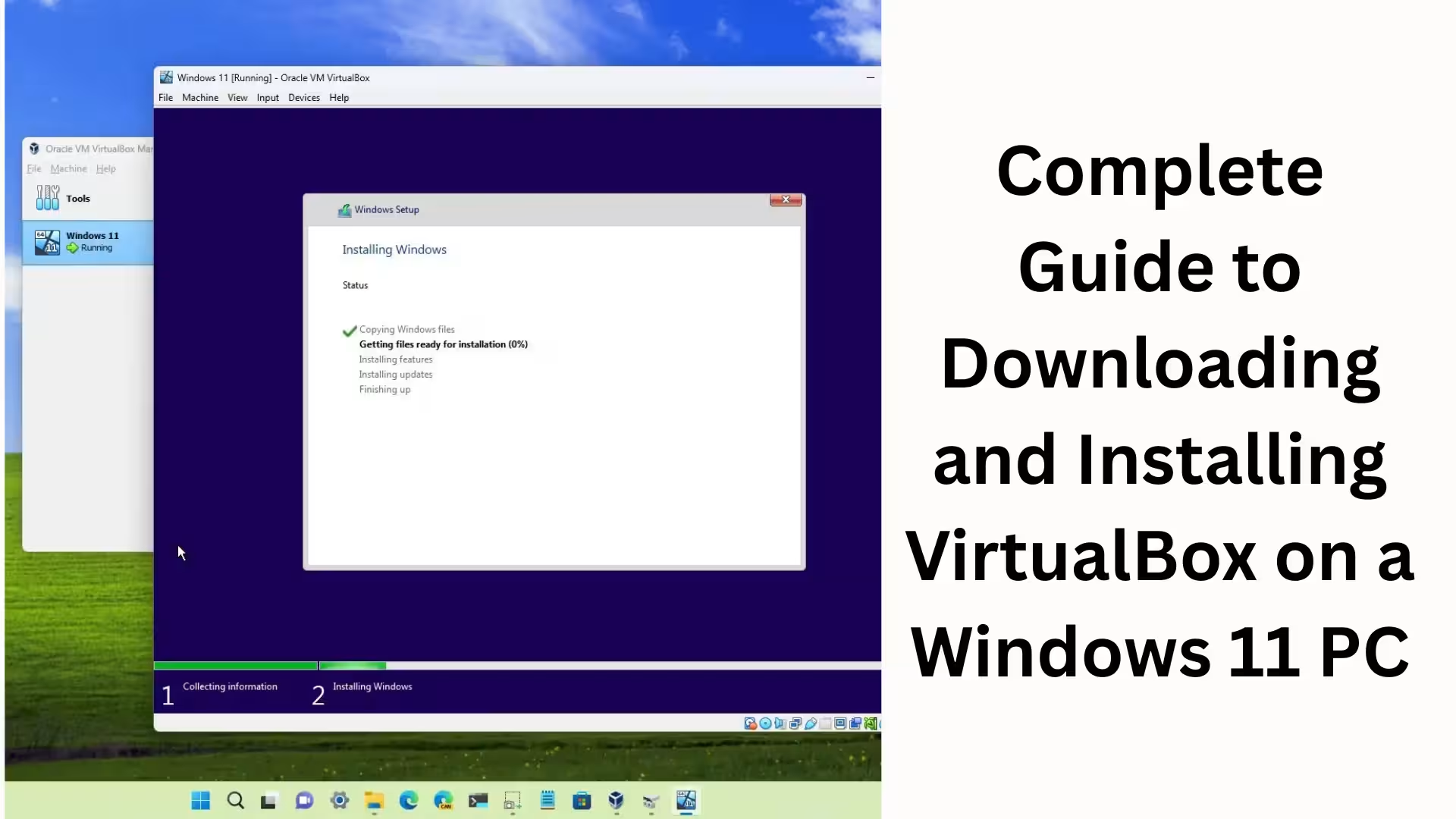
In today’s modern computing environment, VirtualBox is an extremely powerful and reliable virtualization software that allows us to run multiple operating systems on a single Windows 11 PC. This tool is especially useful for developers, IT professionals, students, and tech enthusiasts.
With the help of VirtualBox, we can run various operating systems like Linux, Windows, Ubuntu, and Kali Linux as virtual machines without affecting our main system.
Key Features of VirtualBox for Windows 11 PCs
Free and open-source software
Fully compatible with Windows 11
64-bit and 32-bit OS support
USB, network, and graphics acceleration support
Snapshots and Clone features
Improved performance and stability
System Requirements Before Downloading VirtualBox
To successfully install VirtualBox, your Windows 11 PC must meet the following system requirements:
Operating System: Windows 11 (64-bit)
Processor: Intel or AMD, with virtualisation support
RAM: At least 4GB (8GB recommended)
Storage: Minimum 20GB of free disk space
BIOS/UEFI: Virtualisation (VT-x / AMD-V) Enabled
How to Enable Virtualisation in BIOS
Enabling Virtualisation is essential for VirtualBox to function correctly:
1. Restart your PC
2. Press F2 / F10 / DEL / ESC during boot
3. Go to Advanced / Advanced BIOS Features
4. Enable Intel VT-x / AMD-V / SVM Mode
5. Save settings and Exit
Process for Downloading VirtualBox for Windows 11
Step 1: Open the Official Website
Open the official Oracle VirtualBox website in your browser.
Step 2: Select the Windows Hosts Version
Go to the download section and click on Windows Hosts.
Step 3: Download the Installer File
The VirtualBox installer file will be downloaded in .exe format. Complete Guide to Installing VirtualBox on Windows 11
Step 1: Run the Installer
Double-click the downloaded VirtualBox-x.x.x-Win.exe file.
Step 2: Welcome Setup
Click the Next button.
Step 3: Custom Installation
Keep the default settings here and then click Next.
Step 4: Network Warning
A network reset warning will appear; click Yes.
Step 5: Installation Process
Click the Install button and wait a few minutes.
Step 6: Finish Setup
After the installation is complete, click Finish.
What is the VirtualBox Extension Pack and How to Install It?
The VirtualBox Extension Pack provides additional features such as:
USB 2.0 / 3.0 support
RDP support
Disk Encryption
Steps to Install the Extension Pack
1. Download the Extension Pack according to your VirtualBox version.
2. Open VirtualBox.
3. Go to File > Tools > Extension Pack Manager.
4. Click Add New.
5. Select the Extension Pack file and install it.
How to Create a New Virtual Machine on Windows 11
Step 1: Open VirtualBox
Launch VirtualBox from the Desktop or Start Menu.
Step 2: Click New
Click the New button to create a new Virtual Machine.
Step 3: Fill in OS Details
Name: Ubuntu / Windows / Linux
Type: Linux / Microsoft Windows
Version: Select according to your OS
Step 4: Allocate RAM
Choose at least 2048MB of RAM or as needed.
Step 5: Create a Virtual Hard Disk
VDI (VirtualBox Disk Image)
Dynamically Allocated
Size: 20GB or more
Process to Install OS from ISO File
1. Select the Virtual Machine.
2. Go to Settings > Storage.
3. Click on Empty.
4. Select the ISO file from Choose Disk File.
5. Click Start.
6. The OS installation will begin.
VirtualBox Performance Optimisation Tips on Windows 11
Use 8GB RAM or more
Increase Processor Cores
Set Display Memory to 128MB
Enable 3D Acceleration
Install Guest Additions
How to Install VirtualBox Guest Additions
Guest Additions improves graphics, mouse functionality, and overall performance:
1. Start the Virtual Machine
2. From the menu, select Devices > Insert Guest Additions CD Image
3. Run the installer
4. Restart the system
Common VirtualBox problems and solutions in Windows 11
Problem: VirtualBox is not starting
Disable Hyper-V
Turn off Hyper-V in Windows Features
Problem: 64-bit OS is not visible
Enable Virtualisation in BIOS
Problem: Slow Performance
Increase RAM and CPU Cores
Who is VirtualBox best suited for?
Software Developers
Ethical Hackers
Students
QA Testers
IT Trainers
Conclusion
Downloading and installing VirtualBox on a Windows 11 PC is a very easy and useful process. It allows us to test and use various operating systems in a safe environment. With the right settings and optimisation, VirtualBox significantly enhances our system’s capabilities.
Want to grow your website organically? Contact us now
FAQ – Frequently Asked Questions about VirtualBox on Windows 11
1. What is VirtualBox, and why is it used?
VirtualBox is a free virtualization software that allows you to run multiple operating systems, such as Linux, Ubuntu, Kali Linux, or another Windows version, on a single Windows 11 PC.
2. Is VirtualBox fully compatible with Windows 11?
Yes, VirtualBox is fully compatible with Windows 11, provided the system has a 64-bit processor, and Virtualization is enabled.
3. What are the minimum system requirements for installing VirtualBox?
VirtualBox requires at least:
4GB RAM (8GB recommended)
20GB free disk space
Processor with Intel VT-x or AMD-V support
Windows 11 (64-bit)
4. How to enable Virtualisation in BIOS?
Restart your PC → Press F2 / DEL / F10 during boot →
Go to Advanced Settings and enable Intel VT-x / AMD-V → Save & Exit.
5. Why is the 64-bit operating system not visible in VirtualBox?
This problem occurs when:
Virtualisation is disabled in the BIOS
Hyper-V is enabled in Windows
Solution: Enable Virtualisation in BIOS and disable Hyper-V.
6. What is the VirtualBox Extension Pack, and is it necessary?
The Extension Pack provides advanced features such as USB 2.0/3.0, RDP, and Disk Encryption.
Although not mandatory, installing it is highly recommended for a better experience.
7. How to use an ISO file to install an OS in VirtualBox?
While creating the Virtual Machine or later:
Go to Settings → Storage → Empty → Choose Disk File and select the ISO file, then start the VM.
8. VirtualBox is running very slowly. What should I do?
To improve performance:
Increase RAM and CPU Cores
Enable 3D Acceleration
Set Display Memory to 128MB
Install Guest Additions
9. What are Guest Additions, and why should I install them? Guest Additions improves graphics, mouse movement, screen resolution, and overall performance.
It makes VirtualBox smoother and faster.
10. Is VirtualBox completely safe?
Yes, VirtualBox is a safe and reliable software, provided you download the ISO file and the software only from the official source.
11. Is VirtualBox free or does it cost money?
VirtualBox is completely free and open-source. There are no charges for normal use.
12. Who is VirtualBox most useful for?
Students
Developers
Ethical Hackers
IT Professionals
Software Testers