 By
ByInternet Connection Sharing (ICS) is a useful feature in Windows 11 that allows us to share an internet connection with other devices. However, sometimes we need to disable this feature due to security, network control, or performance concerns. In this article, we’ll explain in detail how to completely turn off Internet Connection Sharing in Windows 11.
What is Internet Connection Sharing (ICS)?
Internet Connection Sharing (ICS) is a networking feature that allows your computer to act as a mini-router. When this feature is on, your system shares the internet with other devices.
Main Uses
Providing internet access to mobile or other devices
Sharing a connection via a LAN network
Providing internet access without a router
Why is it necessary to disable ICS?
Disabling ICS becomes necessary in several situations:
Security reasons: Unknown devices may connect to the network
Network slowdown: More devices connected reduce speed
Increased data usage: Unnecessary data consumption
Impact on system performance
Method 1: Disable Internet Connection Sharing from the Control Panel
Step-by-Step Process
1. Open the Start Menu
2. Search for: Control Panel
3. Click Network and Internet
4. Then go to Network and Sharing Center
5. Now click Change adapter settings
Now proceed further:
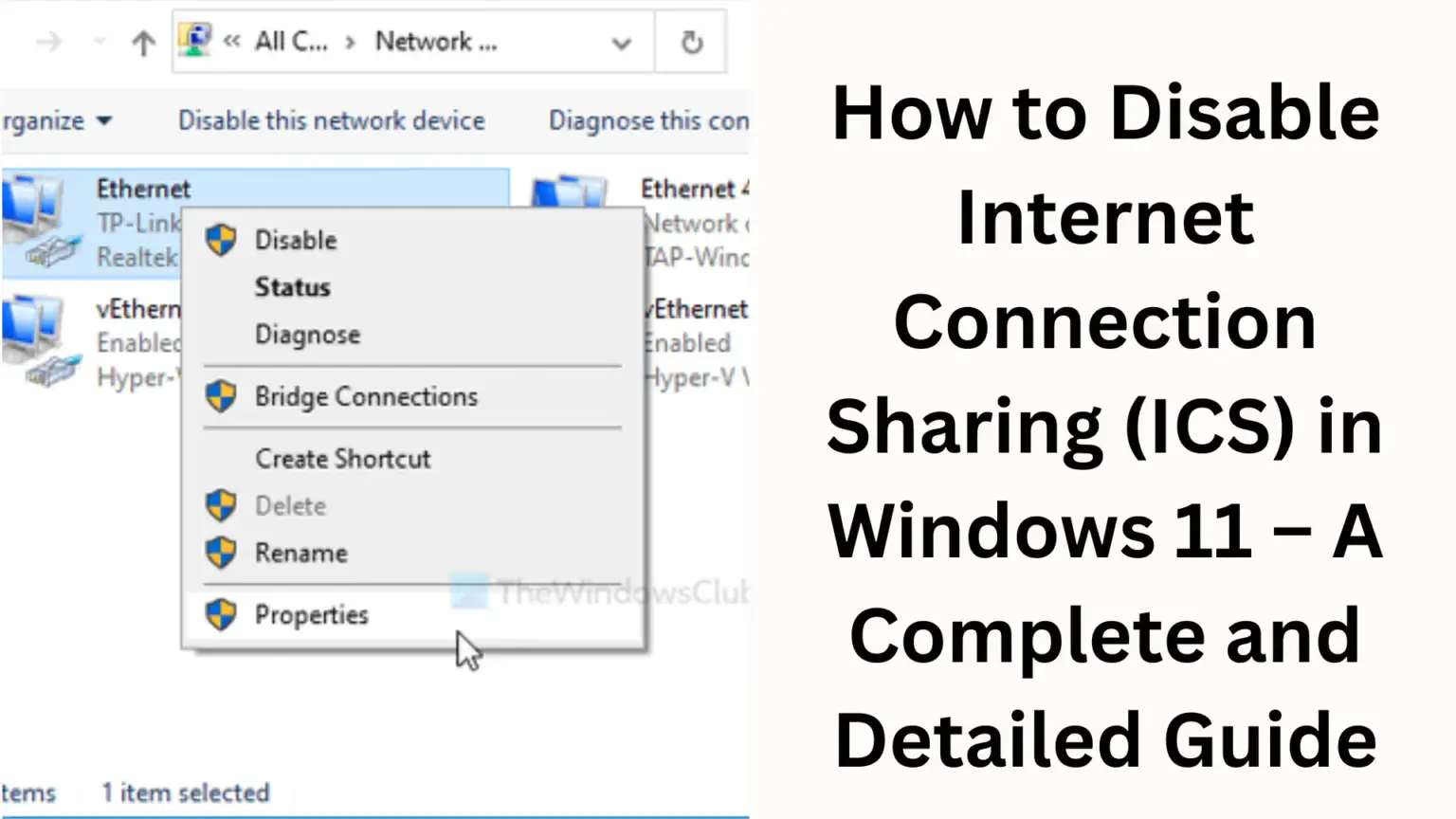
6. Right-click on the network that is being shared
7. Select Properties
8. Go to the Sharing tab
9. Uncheck:
Allow other network users to connect through this computer’s Internet connection
10. Click OK
After this process, ICS will immediately close.
Method 2: Disable ICS via Services.msc
This method is for advanced users.
1. Press Windows + R
2. Type: services.msc
3. Press Enter
Now do the following:
4. Find Internet Connection Sharing (ICS) in the list.
5. Double-click it.
6. Set the Startup Type to Disabled.
7. Click Stop.
8. Then click Apply and OK.
This will completely stop the ICS service.
Method 3: Disable ICS from Windows Settings
1. Open Settings (Windows + I)
2. Go to Network & Internet
3. Click Advanced network settings
4. Then click More network adapter options
Now:
5. Right-click on the network adapter
6. Select Properties
7. Go to the Sharing tab
8. Uncheck the ICS option
9. Save
Also read: How to Enable Windows Recovery Environment in Windows 11?
Method 4: Disable ICS via Command Prompt
Open Command Prompt in Admin Mode
1. Search for CMD in the Start Menu
2. Select Run as Administrator
Enter the command:
net stop sharedaccess
sc config sharedaccess start= disabled
This will stop and disable the ICS service.
Method 5: Disable ICS with PowerShell
1. Open PowerShell (Admin)
2. Run the following commands:
“`
Stop-Service -Name SharedAccess
Set-Service -Name SharedAccess -StartupType Disabled
“`
This method is quick and suitable for professional users.
What changes will happen after ICS is disabled?
No other devices will be able to connect to your internet. Network security will increase. Data usage will decrease. System performance may improve.
Things to keep in mind when disabling ICS.
If you use a hotspot, it may also be disabled.
LAN sharing will be disabled.
Some apps that rely on network sharing will not work.
Common Errors and Their Solutions
1. Sharing Tab Not Visible
Make Sure Your Network Adapter Is Installed Correctly
Update Drivers
2. ICS Service Is Not Starting
Windows Firewall Must Be On
Check Dependencies
3. Access Denied Error
Login with Admin Rights
Pro Tips (For Advanced Users)
You can permanently disable ICS from the Group Policy Editor.
Block network sharing by creating Firewall Rules.
Control is also possible through the Registry Editor.
Conclusion
Disabling Internet Connection Sharing in Windows 11 is an important process, especially if you want to keep your network secure. or want to prevent unnecessary data usage. You can use any of the methods described above based on your needs and technical expertise. Properly disabling ICS makes your system more secure and stable.
Also read: BitTorrent Classic Not Opening on Windows 11? 9 Effective Ways to Fix It
FAQ (Frequently Asked Questions)
Q1. What is Internet Connection Sharing (ICS) in Windows 11?
Internet Connection Sharing (ICS) is a feature that allows you to share your computer’s internet connection with other devices, effectively making your system function like a mini-router.
Q2. When is it necessary to disable ICS?
It is necessary to disable ICS when you need to enhance network security, prevent unwanted device connections, or improve internet speed.
Q3. Will disabling ICS cut off my internet access?
No, your internet connection will remain active; only the sharing of that connection with other devices will stop.
Q4. Can ICS be re-enabled?
Yes, you can re-enable ICS at any time by navigating to the Sharing Settings.
Q5. What is the easiest way to disable ICS?
The easiest method is to go to Control Panel → Network Adapter Settings → Sharing Tab and uncheck the “Allow other users…” option.
Q6. Does ICS work only on Wi-Fi?
No, ICS works on both Wi-Fi and Ethernet connections.
Q7. What should I do if the Sharing Tab is not visible?
Update your network drivers.
Check if the adapter is installed correctly.
Log in with administrator privileges.
Q8. Will disabling ICS also turn off the Hotspot?
Yes, if you are using a Mobile Hotspot, disabling ICS will prevent it from functioning as well.
Q9. Is it safe to disable ICS via the Command Prompt?
Yes, provided you use the correct commands, it is a completely safe and effective method.
Q10. What should I do if the ICS service keeps turning itself back on?
You should go to Services.msc and set the “Startup Type” to “Disabled” to prevent it from starting automatically.
Q11. Does disabling ICS improve network security?
Yes, it prevents unauthorized device connections, thereby making your network more secure.
Q12. Is ICS available in all versions of Windows 11?
Yes, the ICS feature is available in most versions of Windows 11, but it may be disabled by default in some corporate setups.