 By
ByIn today’s world, Virtualization Technology has become incredibly important for developers, testers, and IT professionals. Although Hyper-V is not available by default in the Windows 11 Home Edition, we can activate it using a few simple methods. In this article, we will show you the easiest and most effective way to install Hyper-V on Windows 11 Home.
What is Hyper-V and Why is it Important?
Hyper-V is a hardware virtualization tool developed by Microsoft that allows you to run multiple Virtual Machines (VMs) on a single system.
Key Benefits of Hyper-V:
- Run Multiple Operating Systems (Windows, Linux, etc.)
- A secure environment for testing and development
- System isolation and performance optimization
- Server and network simulation
Why is Hyper-V Not Included in Windows 11 Home?
Microsoft has made the Hyper-V feature available only in Windows 11 Pro, Enterprise, and Education. However, with the help of certain commands and scripts, we can enable it in the Home Edition as well.
Prerequisites Before Installing Hyper-V
Before installing Hyper-V, your system must meet the following requirements:
Minimum System Requirements:
- 64-bit processor with SLAT (Second Level Address Translation)
- 4GB RAM (8GB recommended)
- Virtualization enabled in BIOS/UEFI
- Windows 11 Home (latest updated version)
Step 1: Enable Virtualization in BIOS
For Hyper-V to function, it is essential that your CPU supports virtualization and that it is enabled within the BIOS. How to Enable Virtualization:
1. Restart your system.
2. Press F2 / F10 / DEL / ESC during boot-up.
3. Enter the BIOS Settings.
4. Look for Intel Virtualization Technology or AMD-V.
5. Enable it.
6. Save the settings and Exit.
Step 2: Create the Hyper-V Enable Script
Now, we will create a script to enable Hyper-V on Windows 11 Home.
How to Create the Script:
1. Open Notepad.
2. Copy the code provided below:
pushd “%~dp0”
dir /b %SystemRoot%\servicing\Packages\Hyper-V.mum >hyper-v.txt
for /f %%i in (‘findstr /i . hyper-v.txt 2^>nul’) do dism /online /norestart /add-package:”%SystemRoot%\servicing\Packages\%%i”
del hyper-v.txt
dism /online /enable-feature /featurename:Microsoft-Hyper-V-All /LimitAccess /ALL
pause
3. Save the file:
File Name: hyperv.bat
Save as type: All Files
Step 3: Run the Script as Administrator
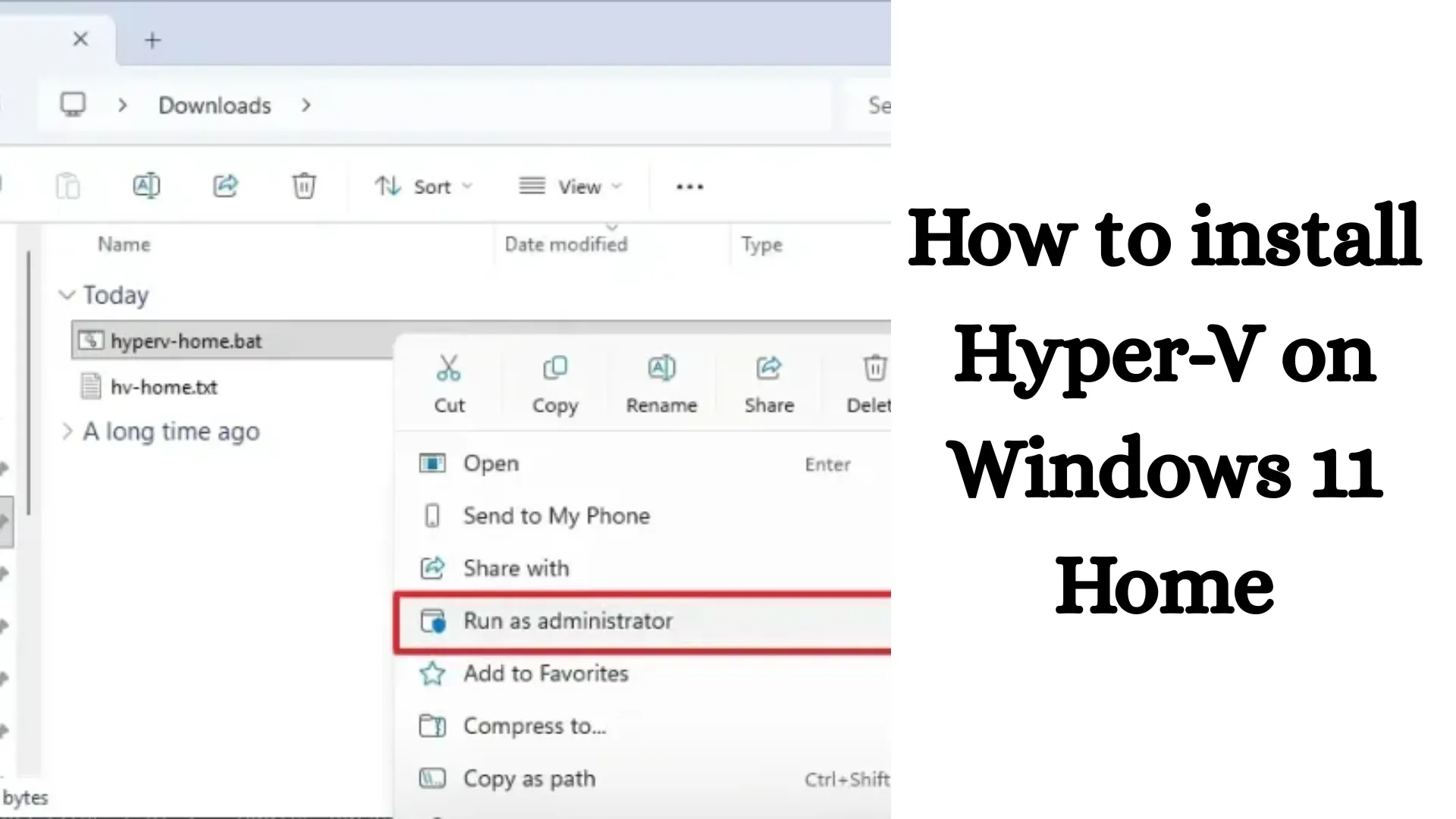
1. Right-click on the hyperv.bat file.
2. Select Run as Administrator.
3. The installation process will begin.
4. Wait for the process to complete.
> This may take some time, as Windows installs the Hyper-V packages in the background.
Step 4: Restart the System
Once the installation is complete:
- You will receive a prompt to restart.
- Press Y and hit Enter.
- Your system will restart.
Step 5: Verify Hyper-V
After restarting, check whether Hyper-V has been installed:
How to Check:
1. Open the Start Menu.
2. Search for: Hyper-V Manager
3. If the option appears, Hyper-V has been successfully installed.
How to Use Hyper-V Manager?
Once Hyper-V is installed, you can create virtual machines.
Steps to Create a VM:
1. Open Hyper-V Manager.
2. In the right panel, click New → Virtual Machine.
3. Follow the wizard:
- Assign a name.
- Allocate memory.
- Configure the network.
- Create a virtual hard disk.
4. Attach the OS ISO file.
5. Start the VM.
Common Issues and Their Solutions
1. Hyper-V Option Not Visible
Check virtualization settings in the BIOS.
Update Windows.
2. Script Not Working
Ensure that the file is in .bat format.
Grant Administrator permissions.
3. Virtual Machine Not Starting
Increase RAM allocation.
Allocate CPU cores.
Hyper-V vs. VirtualBox – Which is Better?
| Feature | Hyper-V | VirtualBox |
| ————- | —————— | ———- |
| Performance | High | Medium |
| Integration | Windows Native | External |
| Ease of Use | Medium | Easy |
| Compatibility | Limited | High |
If you are within the Windows ecosystem, Hyper-V is the best choice.
Alternative Method to Enable Hyper-V (PowerShell)
You can also enable Hyper-V using PowerShell:
Command:
Enable-WindowsOptionalFeature -Online -FeatureName Microsoft-Hyper-V -All
> Run this in an Administrator PowerShell window.
Advanced Hyper-V Features
- Checkpoint (Snapshot)
- Dynamic Memory Allocation
- Virtual Switch Manager
- Live Migration (Advanced use)
Also read: How to Enable Remote Desktop in Windows 11?
Best Practices for Hyper-V Users
- Use SSD storage.
- Maintain at least 8GB of RAM.
- Perform regular backups.
- Optimize VM resources.
Conclusion
We now clearly understand that it is possible to install Hyper-V on Windows 11 Home, even though it is not available by default. By utilizing the method outlined above, we can transform our system into a powerful virtualization machine. This method is completely safe and is extremely useful for developers, students, and IT professionals.
Frequently Asked Questions (FAQs) – Hyper-V on Windows 11 Home
Q1: Can we officially install Hyper-V on Windows 11 Home?
No, officially, Hyper-V is available only on Windows 11 Pro, Enterprise, and Education editions; however, we can enable it on the Home version as well by using a script.
Q2: Is virtualization required to install Hyper-V?
Yes, Virtualization (Intel VT-x or AMD-V) must be enabled in the BIOS/UEFI; only then will Hyper-V function correctly.
Q3: Does the system slow down after installing Hyper-V?
If you run multiple Virtual Machines simultaneously, system performance may be affected. However, under normal usage, there is no significant difference.
Q4: Can Hyper-V and VirtualBox be used together?
Generally, VirtualBox does not function properly when Hyper-V is enabled, as both utilize the virtualization layer.
Q5: What is the minimum RAM required to install Hyper-V?
A minimum of 4GB of RAM is required, but 8GB or more is recommended for better performance.
Q6: How do I create a Virtual Machine after enabling Hyper-V?
You can easily create a VM by opening the Hyper-V Manager and clicking on New → Virtual Machine.
Q7: Is Hyper-V free?
Yes, Hyper-V is a completely free feature that comes bundled with Windows (in supported versions).
Q8: What should I do if Hyper-V is not installing?
Check for virtualization support in the BIOS.
Run the script as Run as Administrator.
Update Windows.
Q9: Can Hyper-V also run Linux operating systems?
Yes, you can easily run various Linux distributions—such as Ubuntu, Kali Linux, and Debian—on Hyper-V.
Q10: How do I disable Hyper-V?
You can disable Hyper-V by going to Control Panel → Windows Features and unchecking the Hyper-V option, or by using a PowerShell command.
Q11: Is Hyper-V safe to use?
Yes, it is Microsoft’s official and secure virtualization tool, making it completely safe to use.
Q12: Does Hyper-V affect gaming performance?
In some cases, having virtualization enabled may slightly impact gaming performance, though this depends on your system configuration.
Are you searching for the best hosting plan? Click now and get 20% off