 By
ByIn Windows 11, system Uptime is a crucial metric that indicates how long your computer has been running continuously since its last restart or boot. Users often notice that their system has been running continuously for days or even weeks; this can impact performance, RAM usage, background processes, and overall system stability. In such instances, resetting the Windows 11 Uptime becomes necessary.
In this comprehensive guide, we will explore effective methods for resetting Windows 11 Uptime in detail, ensuring your computer runs with improved performance and stability.
What is Windows 11 Uptime?
Windows 11 Uptime refers to the duration recorded from your system’s last boot or restart up to the current moment. It can also be described as the system’s operational duration.
For example, if your computer was restarted 5 days ago and has been running continuously since then, the Uptime displayed in the Task Manager will show “5 Days.”
Checking the Uptime helps you understand the following:
How long the system has been running
Whether or not a restart is required
The current state of memory and CPU usage
The impact of background services
Potential performance-related issues
Why Should You Reset Windows 11 Uptime?
Running a system for extended periods without restarting can lead to various issues. Therefore, resetting the Uptime periodically is beneficial.
Key Reasons:
Clearing the RAM Cache
Refreshing Background Apps
Eliminating Temporary System Bugs
Improving Performance
Ensuring System Updates are Applied Correctly
Reducing CPU Load
Resolving Network and Driver Issues
If your Windows 11 system has slowed down or you are experiencing issues with the system freezing (hanging), resetting the Uptime can prove beneficial.
How to Check Uptime in Windows 11
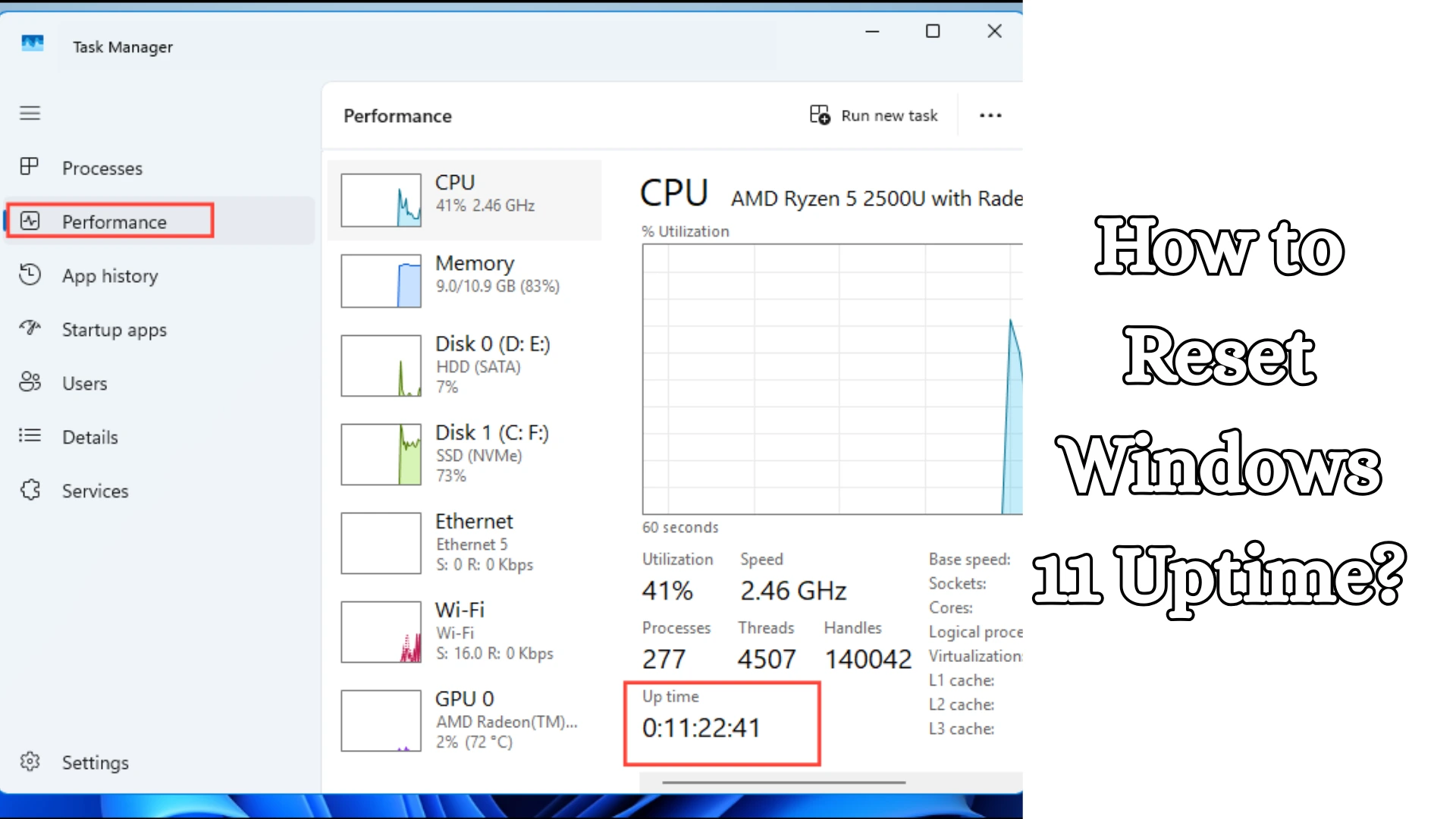
Before resetting, it is essential to know what the current Uptime is. Check Uptime via Task Manager
The easiest method is using the Task Manager.
Steps:
1. Press Ctrl + Shift + Esc
2. Open Task Manager
3. Go to the Performance tab
4. Select the CPU Section
5. Uptime will appear at the bottom
Here, the Uptime is displayed in Days, Hours, Minutes, and Seconds.
Also read: How to Prevent Spam Messages on iPhone (All Methods)?
Method 1: Reset Windows 11 Uptime by Restarting
The simplest and most effective way to reset Windows 11 Uptime is to restart the system.
Steps:
1. Open the Start Menu
2. Click on the Power icon
3. Select Restart
As soon as the system restarts, the Uptime will be reset.
Benefits of Restarting
Provides a fresh boot
Clears the RAM
Eliminates background errors
Improves system speed
This is considered the most recommended method.
Method 2: Reset Uptime by Shutting Down and Powering On
Many users assume that shutting down always resets the Uptime; however, in Windows 11, this is not necessarily the case.
The reason for this is the Fast Startup feature.
If Fast Startup is enabled, the Uptime may not reset even after a standard shutdown.
Steps for a Proper Shutdown:
1. Open the Start Menu
2. Select the Power option
3. Hold down the Shift key while selecting Shutdown
4. Once the system has powered off, turn it back on
This method performs a full shutdown, thereby resetting the Uptime.
Method 3: Reset Windows 11 Uptime via Command Prompt
Advanced users can utilize the Command Prompt.
Restart Command:
1. Type CMD in the Search bar
2. Select Run as Administrator
3. Enter the following command:
“`cmd
shutdown /r /t 0
“`
Then, press Enter. Meaning of the Command
shutdown = System Shutdown Command
/r = Restart
/t 0 = Restart without delay
This command immediately restarts the system and resets the uptime.
Method 4: Resetting Uptime via PowerShell
PowerShell is also an effective method.
Steps:
1. Open Windows Search.
2. Type PowerShell.
3. Open it in Administrator Mode.
4. Enter the command:
“`powershell
Restart-Computer
“`
As soon as you press Enter, the system will restart, and the uptime will be reset.
This method is popular among IT professionals and power users.
Method 5: Disable Fast Startup
If the uptime does not reset even after a shutdown, the cause may be Fast Startup.
Fast Startup saves the kernel session to allow Windows to boot more quickly. Consequently, the uptime does not reset.
Steps to Disable Fast Startup
1. Open the Control Panel.
2. Select Power Options.
3. Click on Choose what the power buttons do.
4. Select Change settings that are currently unavailable.
5. Uncheck Turn on Fast Startup.
6. Click Save changes.
Now, the next time you shut down, the uptime will be reset.
What is Fast Startup, and how does it affect Uptime?
Fast Startup is a hybrid shutdown technology.
In this process:
The user session is closed.
However, the kernel session remains saved.
The next boot sequence is significantly faster.
However, the downside is that the system does not undergo a completely “fresh” boot.
If you desire a complete Uptime reset, disabling Fast Startup is a useful step.
Also read: How to Fix Windows 11 Problems with the New Recovery Tool?
What changes occur after a Windows 11 Uptime reset?
When the Uptime is reset, the system begins operating in a fresh state.
Key changes include:
RAM refresh
Cleanup of cached data
Driver reloading
CPU process refresh
Network stack reset
Reinitialization of system services
This can lead to improved overall system responsiveness.
Do Sleep or Hibernate modes reset the Uptime?
This is a common question.
The answer is no.
Sleep Mode
In Sleep mode:
The system enters a low-power state.
The user session remains active.
The Uptime is not reset.
Hibernate Mode
In Hibernate mode:
The contents of memory are saved to the disk.
The user session is restored upon startup.
The Uptime is not reset.
The Uptime is reset only through a Restart or a proper Shutdown.
Is it advisable to frequently restart Windows 11?
Many users believe that restarting their computer daily is harmful.
In reality:
Regular restarting is safe.
System performance can improve.
Memory leaks can be minimized.
System updates are installed properly.
However, one should avoid excessive use of forced shutdowns.
How to fix issues where Windows 11 Uptime does not reset
If the Uptime does not reset even after a restart, try the following solutions:
1. Disable Fast Startup
2. Perform a Full Shutdown
3. Install Windows Updates
4. Use the CMD Restart Command
5. Run the Power Troubleshooter
These steps typically resolve most related issues.
Conclusion
Resetting Windows 11 Uptime is a simple yet useful process that can help improve system performance, stability, and responsiveness. An uptime reset can be easily performed using a standard restart, the Command Prompt, PowerShell, or the Fast Startup settings.
If your computer has not been restarted for a long time and feels sluggish, a full restart or a proper shutdown can prove to be the most effective solution.
FAQ – How to Reset Windows 11 Uptime?
1. What is Uptime in Windows 11?
In Windows 11, Uptime refers to the amount of time the computer has been running continuously since its last Restart or Boot. It can be easily viewed in the Task Manager.
2. How do I check Windows 11 Uptime?
To check Uptime:
Press Ctrl + Shift + Esc
Open Task Manager
Go to Performance > CPU
Uptime will be displayed at the bottom.
3. What is the easiest way to reset Windows 11 Uptime?
The easiest method is to Restart the System. As soon as the system restarts, the Uptime automatically resets.
4. Does simply shutting down the computer reset the Uptime?
Not always. If the Fast Startup feature is enabled, the Uptime may not reset even after a standard shutdown.
5. What is Fast Startup?
Fast Startup is a Windows 11 feature that helps the computer boot up faster. It saves the Kernel Session, which is why the Uptime often does not reset.
6. How do I disable Fast Startup?
To turn off Fast Startup:
Open Control Panel
Select Power Options
Click on Choose what the power buttons do
Uncheck the option Turn on Fast Startup
Save the settings.
7. How do I reset Windows 11 Uptime using the Command Prompt?
Run the following command in the Command Prompt:
“`cmd
shutdown /r /t 0
“`
This will immediately restart the system and reset the Uptime.
8. Can Uptime also be reset using PowerShell?
Yes, the following command can be used in PowerShell:
“`powershell
Restart-Computer
“`
This restarts the system and resets the Uptime.
9. Does Sleep Mode Reset Uptime?
No, in Sleep Mode, the system enters a low-power state, but the uptime continues to run.
10. Does Hibernate Mode Reset Uptime?
No. In Hibernate mode, the session is saved and restored the next time the system starts up; therefore, the uptime is not reset.
11. What is the difference between Restart and Shutdown?
Restart completely refreshes the system and resets the uptime, whereas a standard Shutdown does not always reset the uptime if Fast Startup is enabled.
12. Is it safe to restart a computer every day?
Yes, restarting regularly is generally considered safe and can improve system performance and memory management.
13. What should I do if the uptime isn’t resetting even after a restart?
If the issue persists:
Disable Fast Startup.
Perform a full shutdown.
Install Windows Updates.
Use the Restart command via CMD.
Run the Power Troubleshooter.
14. Does Uptime Reset After Windows Updates?
In most cases, after Windows Updates are installed, the system restarts, and the uptime is reset.
15. What are the benefits of resetting uptime in Windows 11?
Resetting the uptime can:
Improve system performance.
Refresh the RAM.
Reset background processes.
Reduce temporary errors and bugs.
Make the system feel more responsive.