 By
ByToday, Android smartphones aren’t just for calls and messages; they function like mini computers. Our phones contain many hidden files and hidden folders that aren’t normally visible. These files contain system data, app data, cache, configuration, and other important information.
In this article, we’ll explain in detail how to view hidden files and folders on Android, how to access them, and what precautions to take.
What are hidden files and folders?
Some files and folders on Android devices are intentionally hidden. They’re usually saved with names starting with a dot (.), such as:
- `.nomedia`
- `.thumbnails`
- `.cache`
- `.config`
These files are essential for the proper operation of the system and apps. They’re not needed by the average user, so they’re hidden.
How to View Hidden Files and Folders on Android
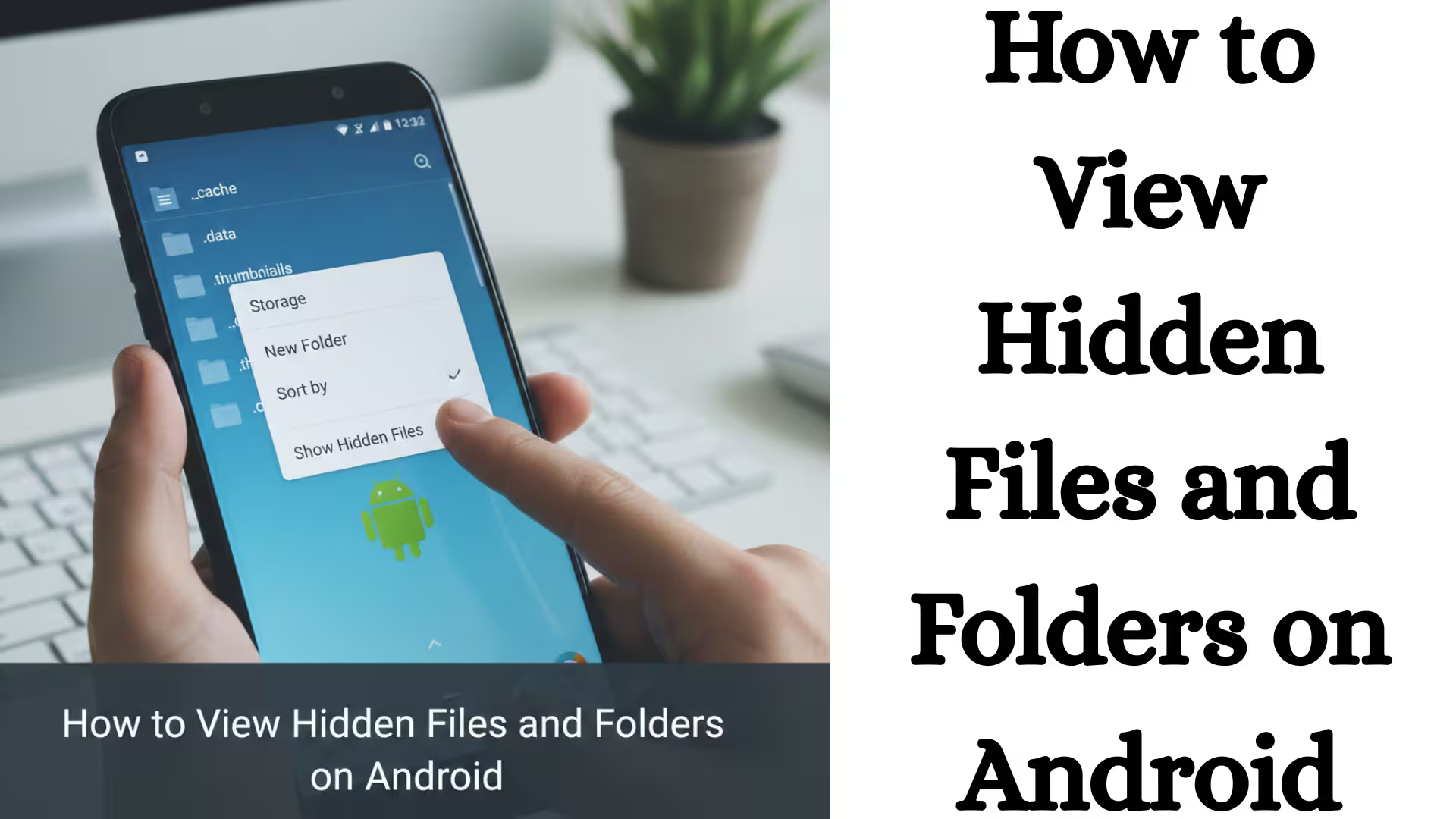
1. View Hidden Files from the Default File Manager
Most Android phones, like Samsung, Xiaomi, Realme, and Vivo, come with a File Manager app built in.
Step-by-step process:
1. Open the File Manager or My Files app on your phone.
2. Tap the three dots (⋮) or Settings option at the top.
3. Now turn on the Show Hidden Files or Display Hidden Files option.
4. You will now be able to see all hidden files and folders.
This method is the simplest and safest.
2. View Hidden Files from the Google Files app
If your phone’s default file manager doesn’t have this option, you can use the Files by Google app.
Procedure:
1. Install Files by Google from the Google Play Store.
2. Open the app.
3. Tap the Menu (☰) at the top left.
4. Go to Settings.
5. Turn on the Show Hidden Files option.
All hidden files on your phone will now be visible.
3. Access Hidden Files with ES File Explorer
If you want advanced control, you can use a third-party app like ES File Explorer.
Steps:
1. Install and open the app.
2. Go to Settings.
3. Tap Display Settings.
4. Activate the Show Hidden Files option.
You can also copy, move, and edit files in this app.
How to Find Hidden Folders in Internal Storage
Hidden files are typically found in these locations:
Internal Storage > Android > Data
Internal Storage > Android > Obb
DCIM > .thumbnails
WhatsApp > Databases
App backups and data are saved in these folders.
What is a .nomedia file on Android?
A `.nomedia` file is a special file that tells the Gallery app not to display media files in that folder.
If you don’t want photos or videos from a folder to appear in the Gallery, create a .nomedia file in that folder.
How to View Hidden Files on a Rooted Android
If your phone is rooted, you can also view system-level files.
Use the Root Explorer app
1. Install Root Explorer.
2. Grant root permission.
3. You can now access directories like /system and /data.
Caution: Modifying system files may damage your phone.
View Hidden Files with ADB Commands (Advanced Method)
If you’re a technical user, you can use ADB (Android Debug Bridge).
Procedure:
1. Install the Android SDK on your PC.
2. Turn on Developer Options on your phone.
3. Enable USB Debugging.
4. Connect to a PC and run the command:
adb shell
ls -a
The `-a` command will show all hidden files.
Is it safe to delete hidden files?
We recommend:
Don’t delete system files
Only delete files you know about
Be sure to back them up first
Deleting the wrong file can cause apps to stop working.
How to View Hidden WhatsApp Files
To view hidden WhatsApp files:
1. Open File Manager.
2. Go to Internal Storage > WhatsApp > Databases.
3. Backup files will be found here.
4. If they’re not visible, turn on Show Hidden Files.
How to Recover Hidden Images and Videos
If your photos aren’t visible in the Gallery:
1. Open File Manager.
2. Go to the relevant folder and delete the `.nomedia` file.
3. Restart your phone.
The photos will now reappear.
How to Password-Protect Hidden Files
You can also hide and lock your folders:
Secure Folder (Samsung)
App Lock Apps
File Hide Apps
This keeps your private files safe.
Viewing Hidden Files in Android 13 and Android 14
Security has been enhanced in the new Android version.
If you’re using Android 13 or Android 14:
App permissions are required
Storage access must be allowed
Scope Storage rules apply
How to Clear Hidden Cache Files
Cache files are hidden. To clear them:
1. Open Settings.
2. Go to Apps.
3. Select an app.
4. Tap Clear Cache.
This improves phone speed.
How to View Hidden Files on an SD Card
1. Open File Manager.
2. Select SD Card.
3. Go to Settings and turn on Show Hidden Files.
All hidden files on the SD card will now be visible.
Safety and Precautions
Don’t tamper with unknown files
Don’t modify system folders
Grant root access wisely
Take regular backups
Conclusion
In this detailed guide, we’ve covered how to view hidden files and folders on Android, how to access them, and what precautions to take. Whether you’re a casual user or a technically advanced user, all of the methods above can easily show you hidden files on your Android phone.
With the right knowledge and caution, you can better manage your device and keep storage under control.
Frequently Asked Questions (FAQ) – How to View Hidden Files and Folders on Android
1. What are hidden files in Android?
Hidden files are files that aren’t normally visible in the file manager. They’re often associated with the system, app data, cache, or configuration, and their name usually starts with a dot (.), such as .nomedia.
2. Can I view hidden files without an app?
Yes, most Android phones have a “Show Hidden Files” option in their default file manager. You can view hidden files by turning it on.
3. How to view hidden files with Files by Google?
Open the Files by Google app → tap Menu (☰) → go to Settings → turn on the Show Hidden Files option.
4. Is it safe to delete hidden files?
It’s unsafe to delete hidden files associated with the system. Deleting the wrong file can cause problems with the app or your phone. Only delete files that have complete information.
5. What is a .nomedia file?
.nomedia is a special file that tells the Gallery app not to show photos/videos in that folder. If it’s removed, the media files become visible again.
6. How to view WhatsApp’s hidden files?
To view WhatsApp files, go to File Manager → Internal Storage > WhatsApp > Databases. If the files are not visible, turn on Show Hidden Files.
7. Can all hidden files be viewed without rooting?
Yes, normal hidden files can be viewed. But root access is required to view system-level files.
8. How to view hidden files in Android 13 and Android 14?
Storage permission is required in Android 13 and Android 14. Give File Manager full storage access, and hidden files will be visible.
9. How to show hidden images in the gallery?
Go to the relevant folder and delete the .nomedia file, then restart the phone. After this, photos and videos will appear in the gallery.
10. How to view hidden files on the SD card?
Open File Manager → select SD Card → go to Settings → turn on Show Hidden Files.
11. How to clear hidden cache files?
Settings → Apps → select the relevant app → tap Clear Cache. This will free up storage and improve phone performance.
12. Do hidden files affect phone speed?
Yes, if too much cache or unnecessary hidden files accumulate, storage can become full and the phone may slow down. Regularly clearing the cache is beneficial.
Are you searching for the best hosting plan? Click now and get 20% off