 By
ByIf you wish to safeguard your computer’s critical files—including documents, photos, videos, and Office data—against ransomware attacks, unauthorized applications, and suspicious programs, Controlled Folder Access in Windows 11 is an excellent security feature. This feature is an integral part of Microsoft Windows Security and prevents any application from modifying your important files without explicit permission.
In this comprehensive guide, we will explain what Controlled Folder Access in Windows 11 is, how to enable and use it, how to grant permissions to specific applications, how to disable it, and how it differs from its implementation in Windows 10.
What is Controlled Folder Access?
Controlled Folder Access is an advanced feature within Windows Security that protects your system’s critical folders. If an unknown application, virus, script, or ransomware attempts to modify your files, Windows will automatically block the attempt.
This feature specifically protects the following folders:
Documents
Pictures
Videos
Desktop
Music
Favorites
You also have the option to add your own custom folders to this list.
Is Controlled Folder Access Enabled by Default in Windows 11?
Many users frequently ask:
Is Controlled Folder Access enabled by default in Windows 11?
Does Windows 11 enable Controlled Folder Access automatically?
Is Controlled Folder Access in Windows 11 turned on or off by default?
The answer is: No. In Windows 11, this feature is typically turned *Off* by default. To utilize it, you must manually enable it yourself.
How to Enable Controlled Folder Access in Windows 11
If you wish to enable Controlled Folder Access, follow the steps outlined below:
Method 1: Enable via Windows Security
1. Open the Start Menu.
2. Search for “Windows Security.”
3. Open the application.
4. Navigate to “Virus & threat protection.”
5. Scroll down to the “Ransomware protection” section.
6. Click on “Manage ransomware protection.”
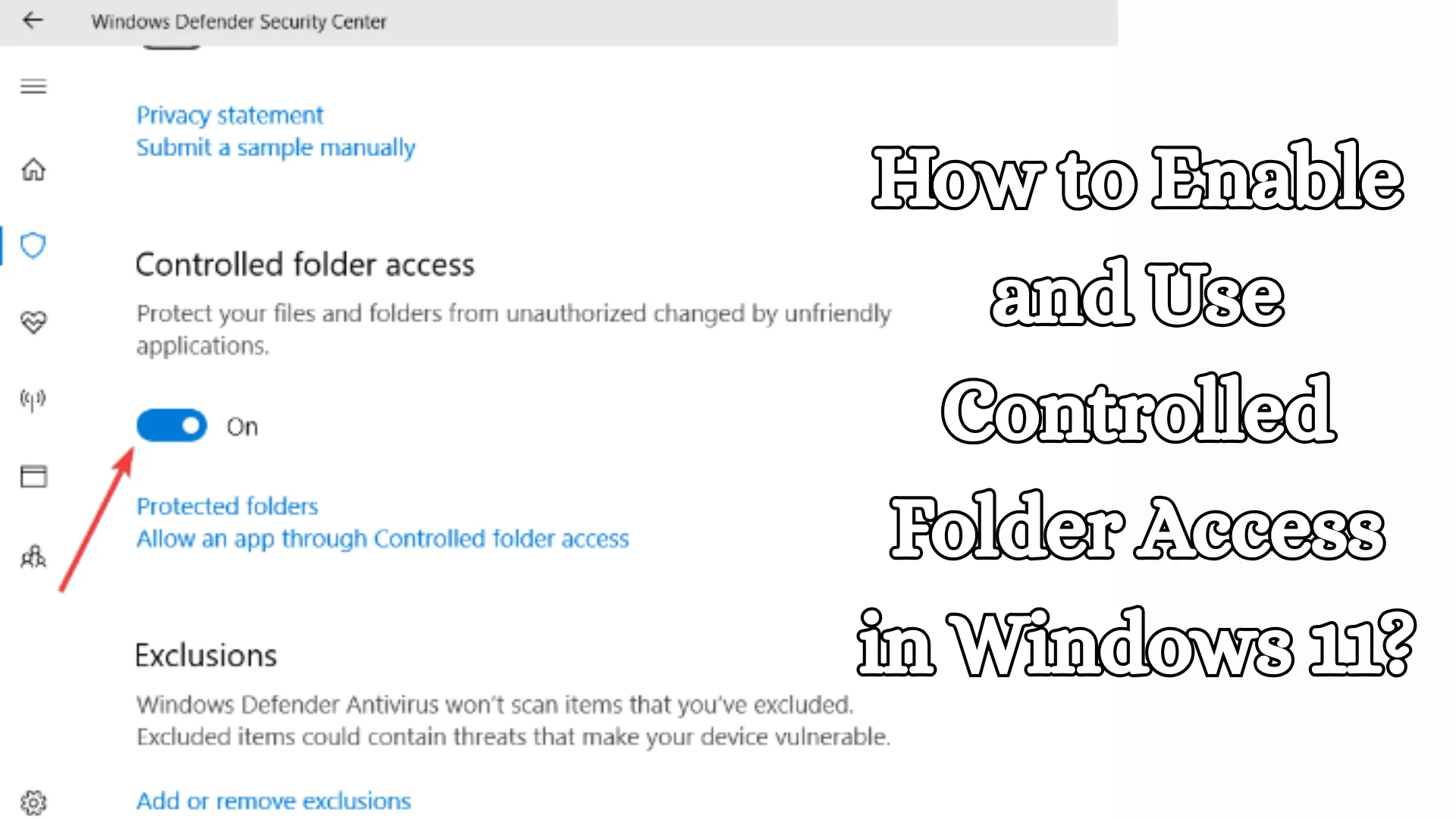
7. Toggle the switch to turn “Controlled folder access” On.
Your system will now operate in a secure mode.
How to Turn On Ransomware Protection in Windows 11
If your question is “how to turn on ransomware protection in Windows 11,” the following procedure applies.
Open Windows Security
Go to Virus & Threat Protection
Select Ransomware Protection
Turn ON Controlled Folder Access
This feature provides robust protection against ransomware.
Controlled Folder Access Requires Turning On Real-Time Protection
If the system displays the message:
“Controlled folder access requires turning on real-time protection.“
Then you must first enable Real-time protection.
Also read: Is Hotcleaner.com Safe? The Most Effective Way to Remove It Completely
How to do this:
1. Open Windows Security
2. Go to Virus & threat protection
3. Select Manage settings
4. Turn ON Real-time protection
Once this is done, Controlled Folder Access will be enabled.
Allow an App Through Controlled Folder Access
Sometimes, even safe applications can get blocked. In such cases, you need to grant permission to the app.
If your question is:
“Allow an app through Controlled Folder Access.”
“Allow an app through Controlled Folder Access in Windows 11.”
Then follow these steps:
1. Open Windows Security
2. Go to Ransomware Protection
3. Locate the Controlled Folder Access section
4. Click on “Allow an app through Controlled Folder Access.”
5. Select “Add an allowed app.”
6. Choose the specific app you wish to grant permission to
The app will now be able to access your files.
Controlled Folder Access Blocked in Windows 11 – Solution
If you encounter an error message such as:
“Controlled folder access blocked in Windows 11”
“Protected folder access blocked in Windows 11”
it means that an application attempted to make changes to a protected folder.
Solution:
If the app is trustworthy, select “Allow.”
If the app is unfamiliar, “Uninstall” it.
Run a full virus scan.
Manage Controlled Folder Access
If you wish to modify the settings, you can use the “Manage Controlled Folder Access” option to:
Allow specific apps
Add protected folders
Toggle the feature ON/OFF
View the block history
How to Add a Custom Folder in Windows 11
You can also protect your business data or personal files.
Steps:
1. Open Windows Security
2. Go to Ransomware Protection
3. Select Protected Folders
4. Click on “Add a protected folder.”
5. Select your desired folder
It will now be protected as well.
How to Turn Off Controlled Folder Access in Windows 11
If you wish to turn it off:
Turn off controlled folder access windows 11
How to disable controlled folder access windows 11
Then:
1. Open Windows Security
2. Go to Ransomware Protection
3. Select Controlled Folder Access
4. Toggle it OFF
However, for security purposes, it is better to keep it ON.
Also read: 7 Ways to Disable Automatic Chrome Updates in Windows
Controlled Folder Access: ON or OFF – Which is Better?
Many people ask:
controlled folder access on or off
Should I turn on Controlled Folder Access
Recommendation:
Keep it ON if:
You store office files
You perform banking activities
Your photos/videos are important
You download files from the internet
Turn it OFF if:
Older software is frequently being blocked
It is a testing system
For average users, keeping it ON is the best option.
Windows 11 Controlled Folder Access: Differences from Windows 10
If you are comparing:
Windows 11 Controlled Folder Access vs. Windows 10
Controlled Folder Access: Windows 11 vs. Windows 10 Differences
Then the key differences are:
Windows 11
New UI
Improved Windows Security Integration
Faster Scanning
Enhanced Notification System
Modern Ransomware Protection
Windows 10
Basic Interface
Less Polished Experience
Older Notification Options
“Controlled Folder Access Page Not Available” in Windows 11
If you encounter this issue:
“Controlled Folder Access page not available” in Windows 11
“Controlled Folder Access page not available.”
The possible causes could be:
Third-party antivirus installed
Group Policy restriction
Windows Defender disabled
Solutions:
Uninstall any third-party antivirus software
Enable Windows Defender
Update Windows
Does Controlled Folder Access Block Internet Access in Windows 11?
Answer: No
This feature does not block internet access. It merely controls access to specific folders.
Windows Defender Controlled Folder Access
This feature was previously known as “Windows Defender“; it is now part of “Microsoft Defender” / “Windows Security.”
Therefore, these keywords refer to the same feature:
Windows Defender Controlled Folder Access
Microsoft Controlled Folder Access
Windows Security Controlled Folder Access
How to Gain Access to a Folder in Windows 11
If a folder is blocked:
1. Allow the specific app
2. Check Folder Permissions
3. Log in using an Administrator account
Changing Folder Permissions in Windows 11
1. Right-click on the folder
2. Select “Properties.”
3. Go to the “Security” tab
4. Click “Edit.”
5. Modify User Permissions
Why is Windows Security Folder Protection Important?
In today’s digital landscape, ransomware attacks are on the rise. Ransomware encrypts your files and demands a ransom payment. Controlled Folder Access protects against such incidents.
Best Settings for Maximum Security
We recommend:
Controlled Folder Access: ON
Real-time Protection: ON
Cloud Protection: ON
Regular Updates
Backup Enabled
Common Problems and Fixes
App Blocked
Add to the Allow list
Option Greyed Out
Use an Admin account
Page Missing
Enable Windows Defender
Conclusion
If you want data security on your Windows 11 system, Controlled Folder Access is an essential feature. It protects your files from ransomware, malware, and unauthorized apps. Enabling it is simple, and with the right settings, it provides robust security.
We advise every Windows 11 user to keep this feature turned ON and to periodically review the “Allow Apps” list. This will ensure your critical files remain safe and make your system more secure.
Frequently Asked Questions (FAQ)
1. What is Controlled Folder Access?
Controlled Folder Access is a security feature within Windows Security that protects your critical files and folders from ransomware, malware, and unauthorized apps.
2. Is Controlled Folder Access enabled by default in Windows 11?
No, this feature is generally turned OFF by default in Windows 11. It must be enabled manually.
3. How do I enable Controlled Folder Access in Windows 11?
Open Windows Security → Virus & Threat Protection → Ransomware Protection → Manage Ransomware Protection → Toggle Controlled Folder Access to ON.
4. Is Controlled Folder Access safe?
Yes, it is an official security feature from Microsoft that protects your files from unauthorized modifications.
5. Does this feature remove viruses?
No, this is not a virus removal feature. It protects your files from unauthorized access.
6. What should I do if an app gets blocked?
Go to Windows Security and grant permission to the app using the “Allow an app through Controlled Folder Access” option.
7. Does Controlled Folder Access block the internet?
No, it does not block internet access. It only controls access to your folders.
8. How do I turn off Controlled Folder Access?
Windows Security → Ransomware Protection → Controlled Folder Access → Turn OFF.
9. Is this feature also available in Windows 10?
Yes, this feature is available in both Windows 10 and Windows 11.
10. Should we keep Controlled Folder Access turned ON?
Yes, if your system contains important files, office data, photos, or personal documents, it is better to keep it turned ON.
11. Controlled Folder Access is not turning on; what should I do?
First, turn ON Real-time Protection. After that, enable Controlled Folder Access.
12. Can we also protect our own custom folders?
Yes, you can add your preferred folders using the “Protected Folders” option.
13. Does this feature slow down the system?
No, it has very little impact during normal usage.
14. What should I do if “Controlled Folder Access: Page Not Available” appears?
Turn on Windows Defender, remove any third-party antivirus software, or run Windows Update.
15. Is this feature necessary for all users?
Yes, especially for those who download files from the internet or store important data.