 By
ByWhat Are Animation Effects in Windows 11?
In Windows 11, animation effects are visual effects that appear when opening, closing, or minimizing windows, or when displaying menus with transitions. This feature gives the system a modern, sleek look; however, these animations can sometimes slow system performance—especially on older or low-end computers.
If your computer is running slowly, apps are taking a long time to open, or the system feels sluggish, disabling animation effects can be an excellent solution. Doing so boosts Windows 11’s performance and improves system responsiveness.
Benefits of Disabling Animation Effects in Windows 11
1. Increased System Speed
Disabling animations means Windows no longer has to process additional graphics, allowing the system to operate more quickly.
2. Reduced Load on RAM and GPU
On systems with limited RAM or integrated graphics, animation effects consume significant resources. Turning them off makes the system feel lighter and more agile.
3. Improved Battery Life
For laptop users, disabling animations helps conserve battery power.
4. A More Responsive Windows Interface
Windows and menus open instantly, resulting in a faster and smoother overall user experience.
How to Disable Animation Effects via Settings
This is the easiest and safest method.
Step 1: Open Windows Settings
Press Windows + I on your keyboard.
This will open the Windows Settings window.
Step 2: Go to the Accessibility Section
Click on Accessibility in the menu located on the left-hand side.
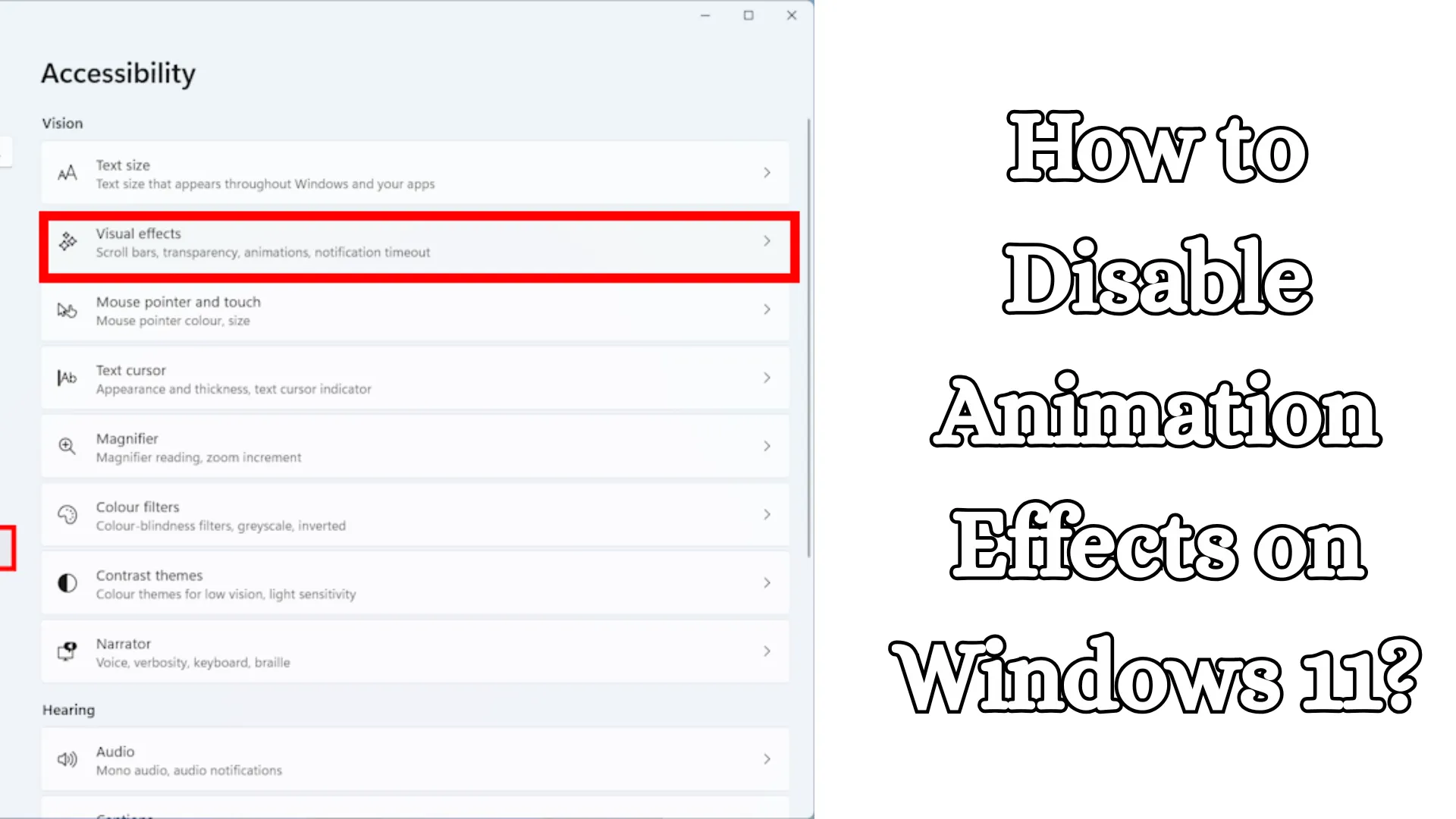
Step 3: Open Visual Effects
Scroll down the page.
Click on the Visual effects option.
Step 4: Turn Off Animation Effects
Here, you will see a toggle switch labeled Animation effects.
Toggle it to the Off position.
All major animation effects in your Windows 11 system will now be disabled.
How to Disable Animation Effects via Performance Options
If you are looking to boost performance, you can utilize the Advanced Performance Settings.
Step 1: Open the Run Dialog
Press Windows + R on your keyboard.
Step 2: Open System Properties
Type the command shown below into the Run box:
“`powershell
SystemPropertiesPerformance
“`
Then, press Enter.
Step 3: Select the Visual Effects Tab
A new window will open, displaying various visual effects options.
Step 4: Select “Adjust for Best Performance”
Choose the Adjust for best performance option.
This will disable all unnecessary visual effects.
Step 5: Click Apply and OK
Click on Apply.
Then, click OK.
Your Windows 11 system should now feel faster and more responsive.
Also read: How to Delete Large Folders Faster in Windows 11?
How to Disable Specific Animation Effects
If you do not wish to turn off all effects, you can choose to disable only specific animations.
Uncheck These Options
Navigate to Performance Options and disable the following effects:
Animate windows when minimizing and maximizing
Animations in the taskbar
Fade or slide menus into view
Fade or slide ToolTips into view
Fade out menu items after clicking
This ensures that only non-essential animations are disabled, while largely preserving the overall look and feel of Windows.
How to Disable Animation Effects via the Registry Editor
This method is intended for advanced users.
Step 1: Open the Registry Editor
Press Windows + R.
Type `regedit`.
Press Enter.
Step 2: Navigate to the Following Path
“`powershell
HKEY_CURRENT_USER\Control Panel\Desktop
“`
Step 3: Locate “MinAnimate”
On the right-hand side of the window, find the value named MinAnimate.
Step 4: Modify the Value
Double-click on MinAnimate.
The values correspond to:
0 = Animations Disabled
1 = Animations Enabled
Set the Value data to 0.
Step 5: Restart Your System
Restart your computer for the changes to take effect.
How to Disable Animation Effects via PowerShell
Advanced users can also disable animations using PowerShell. PowerShell Command
Open PowerShell as an Administrator and run this command:
“`powershell
Set-ItemProperty -Path “HKCU:\Control Panel\Desktop” -Name MinAnimate -Value 0
“`
Then, restart your system.
Why Disabling Animations is Necessary on Low-End PCs
If our system features the following low-end hardware:
4GB RAM
HDD Storage
Older Processor
Integrated Graphics
then animation effects can slow the system down. In such cases, disabling animations results in:
Reduced boot times
Faster app launch speeds
Improved multitasking performance
Reduced system lag
Is Disabling Animation Effects Beneficial for Gaming?
Yes, in many cases, it can be useful.
When Windows animations run in the background, they consume CPU and GPU resources. Disabling animations helps by:
Reducing background resource usage
Potentially improving FPS stability
Slightly reducing input delay
However, on high-end gaming PCs, the difference is often barely noticeable.
What Will Windows Look Like After Disabling Animation Effects?
Once animations are disabled:
Windows will feel snappier
Menus will open instantly
Window transitions will become instantaneous
The UI will appear slightly simpler
If you prefer a smooth visual experience, you can choose to disable only specific effects.
Also read: How to Delete System Restore Points in Windows?
Other Ways to Boost Windows 11 Performance
1. StarDisable Startup Apps
Turn off unnecessary startup programs.
2. Perform Storage Cleanup
Remove temporary files and cache.
3. Upgrade to an SSD
If you are still using an HDD, upgrade to an SSD.
4. Update Windows
The latest updates often bring significant performance improvements.
5. Close Background Apps
Unnecessary apps running in the background can slow down the system.
Does disabling animation effects cause any harm?
Generally, there is no major downside. The only effect is that the visual experience of Windows might appear slightly less visually appealing.
Some users may not prefer the instant window transitions, but in terms of performance, this change is highly beneficial.
How to Re-enable Animation Effects in Windows 11
If you wish to turn the animations back on later:
Settings Method
Settings → Accessibility → Visual Effects
Toggle “Animation effects” to ON.
Performance Options Method
Open `SystemPropertiesPerformance`
Select “Let Windows choose what’s best for my computer.”
Conclusion
Disabling animation effects in Windows 11 is a simple and effective way to improve system performance. This change can make a significant difference, particularly on low-end PCs, older laptops, and systems with limited RAM.
You can easily disable animation effects using Settings, Performance Options, the Registry Editor, or PowerShell. If your goal is to achieve faster, more responsive, and smoother performance, disabling animation effects is an excellent option.
FAQ – Common Questions Regarding Disabling Animation Effects in Windows 11
1. What are Animation Effects in Windows 11?
Animation Effects are visual transitions that appear in Windows when opening, closing, or minimizing windows, as well as when displaying menus. They make the system visually appealing but can reduce performance on certain systems.
2. Does disabling Animation Effects make Windows 11 faster?
Yes, disabling Animation Effects reduces the graphical load on the system, making Windows feel faster and more responsive.
3. How do I disable Animation Effects in Windows 11?
You can disable Animation Effects by following the steps below:
Open Settings
Go to Accessibility
Select Visual Effects
Toggle the “Animation effects” switch to Off
4. Is it safe to disable Animation Effects?
Yes, this is a completely safe process. It merely turns off visual animations and causes no harm to the system.
5. Does disabling Animation Effects improve gaming performance?
You may observe a slight improvement in performance on low-end PCs, as background visual processing is reduced.
6. Does disabling animations improve laptop battery life?
Yes, it can save battery power to some extent, as the GPU and system resources are utilized less.
7. Can all Animation Effects be disabled at once?
Yes, by navigating to “Performance Options” and selecting “Adjust for best performance,” almost all visual effects are disabled simultaneously.
8. How do I turn Animation Effects back on?
Go to Settings → Accessibility → Visual Effects
Toggle the “Animation effects” switch to ON
9. Does disabling Animation Effects make Windows look worse?
Windows may appear slightly simpler and less fluid, but the system’s speed and responsiveness are improved.
10. Is it necessary to disable animation effects on a low-end PC?
If your system has low RAM, an older processor, or an HDD, disabling animation effects can be quite beneficial.
11. Is using the Registry Editor the correct way to disable animations?
Yes, advanced users can disable animations using the Registry Editor; however, caution is required to avoid making incorrect changes.
12. Can animation effects also be disabled using PowerShell?
Yes, animation effects can also be easily disabled by using PowerShell commands.
13. Does disabling animation effects reduce boot time?
On some systems, the startup and login experience may feel slightly faster.
14. Which method is the easiest way to disable animations?
Disabling animation effects via the Settings app is considered the easiest and safest method.
15. Is it possible to disable only specific animations in Windows 11?
Yes, by navigating to “Performance Options,” you can disable specific animation effects while keeping the remaining effects enabled.