 By
ByIf sound comes from only one side of your computer or laptop, one side of your headphones sounds louder than the other, or the audio balance between your left and right speakers has become uneven, then correcting the Audio Balance settings in Windows 11 is essential. Often, audio becomes unbalanced due to updates, driver issues, incorrect settings, or external devices.
In this detailed guide, we will show you how to adjust the Left and Right Audio Balance in Windows 11, which settings need to be changed, what issues cause audio balance to go awry, and how to fix them.
What is Audio Balance in Windows 11?
Audio Balance refers to ensuring that sound is distributed in equal amounts between your computer’s left and right speakers or headphones. If the volume on one side becomes louder or softer than the other, it is referred to as Audio Imbalance.
Examples:
The left speaker volume is too high
The right earphone volume is too low
Sound coming from only one side
Uneven sound output during videos or music playback
Windows 11 features a built-in Audio Balance Control that allows you to independently control the volume levels of both audio channels.
How to Adjust Left and Right Audio Balance in Windows 11
Change Audio Balance via Settings
This is the easiest and quickest method.
Step 1: Open Windows Settings
Press Windows + I on your keyboard.
Now, navigate to the System section.
Step 2: Open Sound Settings
Select System from the left-hand sidebar.
Then, click on Sound.
Step 3: Select Output Device
You will now see a list of your audio devices, such as:
- Speakers
- Headphones
- Bluetooth Earbuds
- HDMI Audio
Click on the specific device for which you wish to adjust the audio balance.
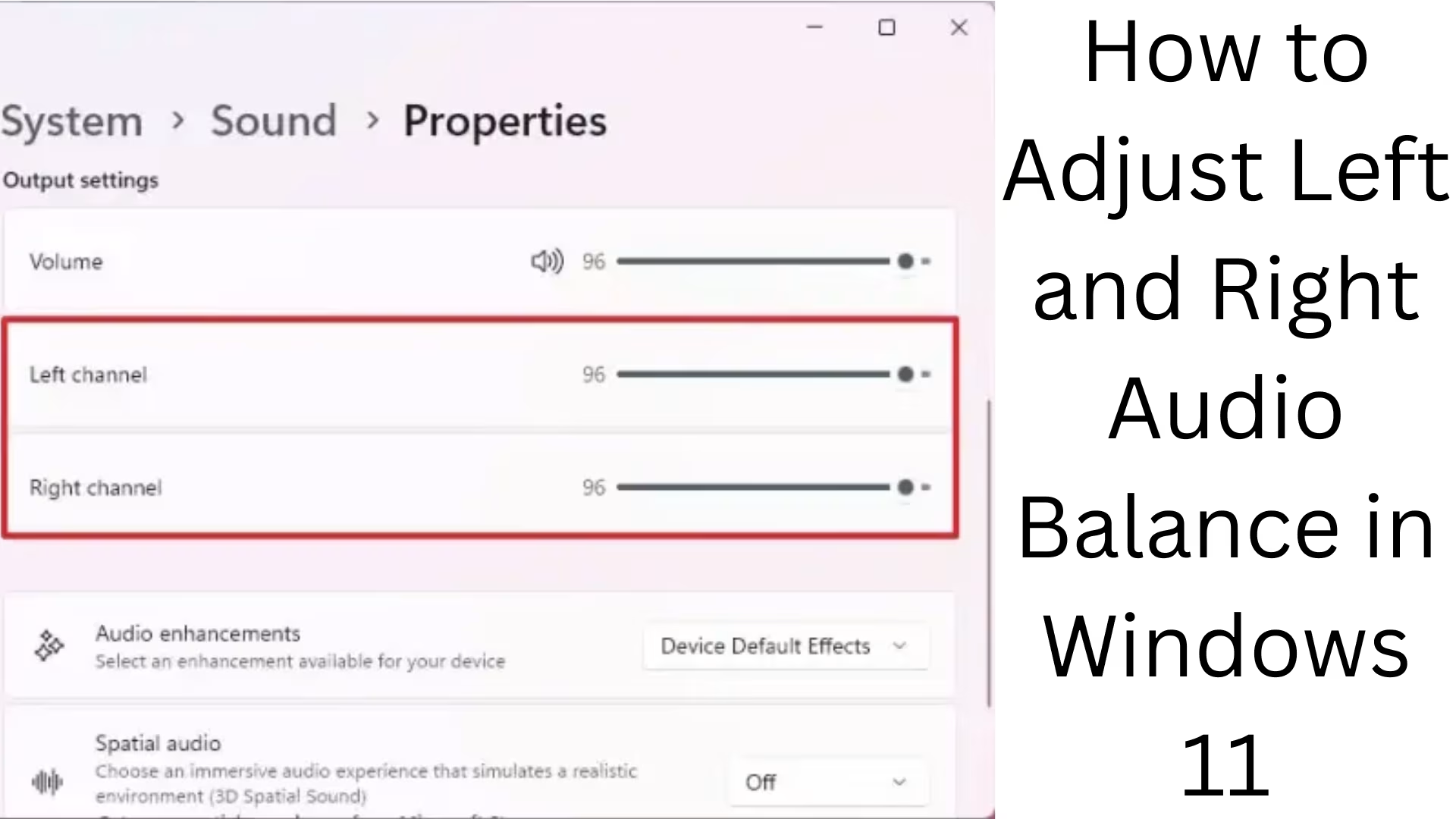
Step 4: Adjust Audio Balance
Scroll down, and you will find the Balance option. There will be two sliders here:
- Left
- Right
Keep the values for both the same—for example:
- Left = 100
- Right = 100
If the audio sounds quieter on one side, you can increase the value for that specific side.
How to Change Audio Balance via the Control Panel
On some systems, the Balance option does not appear within the standard Settings menu. In such cases, using the Control Panel method proves useful.
An Older, Yet Highly Reliable Method
Also read: How to Manually Uninstall Windows 11 Updates?
Step 1: Open the Run Command
Press Windows + R
Type:
“`bash
mmsys.cpl
“`
Press Enter
Step 2: Select Your Playback Device
Go to the Playback tab
Select either Speakers or Headphones
Click on Properties
Step 3: Open the Levels Tab
Now, navigate to the Levels tab
You will find the Balance button located there
Step 4: Set Left and Right Volume Levels
You can now:
Control the volume for L (Left)
And R (Right)
independently.
Keep both values equal to ensure a balanced sound output.
What to Do If Only One Earphone Is Working
Often, the issue isn’t solely related to the Balance settings. The causes listed below may also be at play.
1. Faulty Earphones or Headphones
Test the audio using a different pair of headphones to verify.
2. Loose Audio Jack Connection
Ensure the 3.5mm audio jack is inserted correctly and securely.
3. Bluetooth Connection Issues
Remove the Bluetooth device from your system and then re-pair it.
4. Corrupted Audio Driver
It may be necessary to update your audio driver.
How to Update Audio Drivers in Windows 11
Device Manager Method
Steps:
Right-click on the Start Menu
Open Device Manager
Expand Sound, video, and game controllers
Right-click on the Audio Driver
Select Update Driver
Now:
Click on Search automatically for drivers
Fix Audio Issues by Disabling Audio Enhancements
Often, the Audio Enhancements feature can disrupt the sound balance.
How to Disable
Go to Settings → System → Sound
Select your Output Device
Scroll down
Turn Audio Enhancements Off
After doing this, check your audio.
Turn Off Mono Audio
If Mono Audio is enabled, the two audio channels merge, and the sound may seem unnatural.
How to Disable Mono Audio
Open Settings
Go to Accessibility → Audio
Turn Mono Audio Off
Change Audio Balance via Realtek Audio Console
If the Realtek Audio Driver is installed on your system, you can also adjust the audio balance through it.
How to Do It
Open the Start Menu
Search for “Realtek Audio Console“
Navigate to the “Speakers” section
Adjust the Left and Right Channels
This method is better suited for advanced users.
How to Fix Left/Right Audio Balance Issues in Bluetooth Headphones
This issue is frequently observed in Bluetooth devices.
Solutions
1. Forget the Device
Go to Settings → Bluetooth & devices
Remove the device
2. Re-pair the Device
Reconnect the Bluetooth device.
3. Check the Battery Level
One earbud may sound quieter than the other if the battery is low.
Run the Audio Troubleshooter in Windows 11
Microsoft’s built-in troubleshooter can automatically resolve many issues.
How to Run It
Go to Settings → System → Troubleshoot
Select “Other troubleshooters”
Click Run next to “Audio”
Windows will now automatically detect the problem and provide a solution.
Reset Advanced Audio Settings
Resetting audio settings is useful if a specific configuration has gone wrong.
Audio Reset Method
Go to Settings → System → Sound
Open the “Volume mixer“
Scroll down and click Reset
This will restore all audio preferences to their default values.
Disable Spatial Audio in Windows 11
Spatial Audio can sometimes cause sound imbalance.
How to Disable It
Open Sound Settings
Select your Output Device
Navigate to the “Spatial audio” section
Turn it Off
How to Fix Audio Balance Issues in Gaming Headsets
Users of gaming headsets frequently encounter this issue. Key Causes
Surround Sound Software
DTS Settings
Nahimic Audio
Razer Synapse Configuration
Solutions
Disable Surround Sound
Reset Equalizer
Update Gaming Software
Fixing Audio Settings via the Registry in Windows 11
This method is intended for advanced users only.
Open the Registry
Press Windows + R
Type:
“`bash
regedit
“`
Press Enter
You can now remove incorrect audio configurations; however, proceed with caution when editing the Registry.
Benefits of Maintaining Proper Audio Balance
With proper audio balance:
Music sounds better
The gaming experience is improved
Movie surround effects are rendered accurately
Strain on the ears is reduced
Voice clarity is enhanced
Windows 11 Audio Balance Shortcut Tips
Quick Access Methods
| Task | Shortcut |
| ————– | ———– |
| Open Settings | Windows + I |
| Run Command | Windows + R |
| Device Manager | devmgmt.msc |
| Sound Panel | mmsys.cpl |
Common Causes of Audio Balance Issues
Primary Reasons
Incorrect Balance Settings
Driver Corruption
Bluetooth Issues
Faulty Earphones
Windows Update Bugs
Audio Enhancement Conflicts
Mono Audio Enabled
Best Practices for Balanced Audio
For a Superior Sound Experience
Always use original drivers
Perform Windows Updates regularly
Use high-quality headphones
Avoid excessive modification of the Equalizer
Keep audio enhancements to a minimum
Also read: 11 Things You Never Knew About the New Run Dialog in Windows 11
Conclusion
Adjusting the left and right audio balance in Windows 11 is extremely simple, though knowing the correct settings is essential. Whether the issue lies with headphones, speakers, or Bluetooth audio, you can easily resolve audio imbalance using the methods outlined above.
If your system is producing audio that is louder or softer on one side, first check your Balance Settings, and then examine your drivers and audio enhancements. In most cases, the problem is resolved within a few minutes.
FAQs – Frequently Asked Questions Regarding Left and Right Audio Balance in Windows 11
1. How do I change the Left and Right Audio Balance in Windows 11?
To change the Audio Balance in Windows 11, go to Settings → System → Sound → Output Device → Balance, and adjust the Left and Right sliders according to your needs.
2. One side of my headphones is louder than the other; what should I do?
First, check your Audio Balance settings. If the problem persists, inspect your headphones, the audio jack, or the Bluetooth connection.
3. Can I set different volume levels for individual speakers in Windows 11?
Yes, in Windows 11, you can set the volume levels for both the Left and Right channels independently.
4. The Audio Balance option is not visible; what is the solution?
If the Balance option does not appear in Settings, open the Sound Control Panel using the `mmsys.cpl` Run command and set the balance from there.
5. Can a faulty audio driver disrupt the sound balance?
Yes, a corrupted or outdated audio driver can cause uneven sound levels between the Left and Right channels.
6. What is Mono Audio in Windows 11?
Mono Audio combines the sound from both channels into a single stream. For better stereo sound quality, this setting should be kept turned Off.
7. Why is the volume lower on one side of my Bluetooth earbuds?
This issue may be caused by a low battery, a Bluetooth pairing error, or incorrect audio settings.
8. What are the benefits of disabling Audio Enhancements?
Disabling Audio Enhancements can often resolve issues related to distorted sound and audio imbalance.
9. Can Windows Updates cause audio balance issues?
Yes, this issue can sometimes occur after certain Windows Updates due to conflicts with audio drivers.
10. How to run the Audio Troubleshooter in Windows 11?
Click on Settings → System → Troubleshoot → Other Troubleshooters → Audio → Run.
11. Do gaming headsets also experience audio balance issues?
Yes, gaming headsets can encounter this issue due to Surround Sound settings or gaming software configurations.
12. How do I adjust the audio balance using the Realtek Audio Console?
Open the Realtek Audio Console, navigate to the Speakers section, and adjust the Left and Right channels.
13. Sound is coming from only one speaker—what should I do?
Check the Audio Balance, speaker cables, drivers, and playback device settings.
14. Can a factory reset fix audio issues?
A reset may help if the software settings have become completely corrupted; however, it is best to check the drivers and sound settings first.
15. What is the quickest way to adjust the audio balance in Windows 11?
Pressing `Windows + I` to open the Sound Settings directly is the easiest and fastest method.