 By
ByIntroduction
In today’s digital age, Google Chrome is more than just a browser; it is an essential part of our daily lives. Whether it’s checking emails, online banking, studying, or office work—Chrome plays a crucial role everywhere. However, when Chrome fails to open on Windows 11, it’s naturally frustrating.
Here, we present 9 highly effective and practical solutions that can help you permanently resolve this problem.
1. Completely close Chrome processes running in the background
Sometimes Chrome appears closed, but background processes continue to run, preventing the browser from opening the next time.
Solution:
Press `Ctrl + Shift + Esc` to open Task Manager
Select all processes related to Google Chrome
Click on End Task
Now try opening Chrome again
This method often solves the problem immediately.
2. Restart Windows 11
This simple solution may seem basic, but it’s incredibly effective.
Restarting Windows clears temporary system glitches, memory cache, and hung processes.
When is it necessary:
If the system is slow
If multiple apps are open simultaneously
If Chrome suddenly stopped opening
3. Run Google Chrome in Administrator mode
Sometimes, permission or security restrictions prevent Chrome from starting.
How to do it:
Right-click on the Chrome icon
Select Run as Administrator
If Chrome opens, the problem was related to permissions
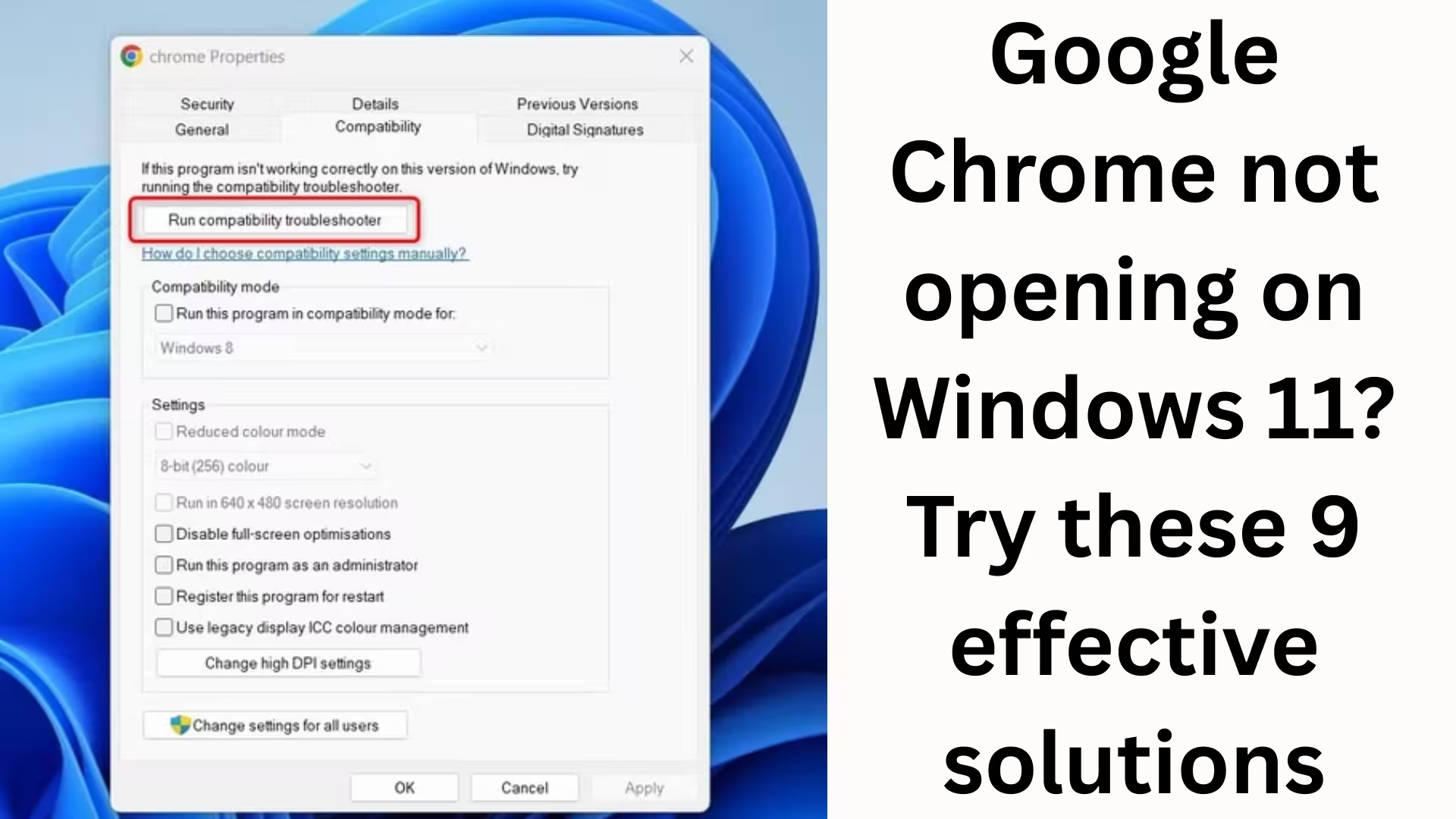
4. Disable Chrome Compatibility Mode
When Compatibility Mode is enabled in Windows 11, Chrome may not launch correctly.
Steps:
Right-click on the Chrome shortcut → Properties
Open the Compatibility tab
Uncheck “Run this program in compatibility mode”
Apply → OK
5. Reset the Chrome User Profile
A corrupted or damaged User Profile can prevent Chrome from opening completely. Troubleshooting Steps:
Press `Win + R`
Type:
“`
%localappappdata%\Google\Chrome\User Data
“`
Rename the Default folder to `Default.old`
Relaunch Chrome
This will create a new, clean profile for Chrome.
6. Temporarily Disable Third-Party Antivirus or Firewall
Many antivirus programs incorrectly block Chrome.
What to do:
Temporarily disable your antivirus
Open Chrome and check
If Chrome opens, add Chrome to the antivirus’s Allow List
7. Completely Uninstall and Reinstall Google Chrome
If Chrome’s files are corrupted, only a reinstallation will provide a permanent solution.
Correct method:
Control Panel → Programs & Features
Uninstall Google Chrome
Then delete these folders:
“`
C:\Program Files\Google
C:\Users\YourName\AppData\Local\Google
“`
Download the latest version of Chrome from the official website
Perform a fresh installation
8. Check Windows 11 System Files (SFC Scan)
Corrupted system files can also prevent Chrome from opening.
Run the command:
Type cmd in the Start Menu
Select Run as Administrator
Type:
“`
sfc /scannow
“`
Allow the scan to complete
Restart your system
9. Update Windows 11 and Drivers
Outdated Windows or graphics drivers can also cause Chrome startup errors.
Update process:
Settings → Windows Update
Check for updates
Install all pending updates
Especially keep your Graphics Driver updated
Additional Important Tips
Remove unnecessary browser extensions
Ensure sufficient disk space on your system
Avoid third-party cleaner tools
Always use the official Chrome installer
Conclusion
If Google Chrome is not opening on Windows 11, the problem is more likely related to software configuration, profile, or system files than hardware. By following the 9 solutions above in order, you can get Chrome working again without any technical assistance. Our experience suggests that at least one of these solutions will definitely solve your problem.
Want to grow your website organically? Contact us now
Frequently Asked Questions (FAQ)
1. Why is Google Chrome not opening in Windows 11?
The main reasons why Google Chrome might not open in Windows 11 could be a corrupted user profile, background processes, antivirus blocking, outdated drivers, or corrupted system files. Proper troubleshooting can easily resolve this issue.
2. Nothing happens when I click on the Chrome icon. What should I do?
In this situation, first open Task Manager and close all Chrome processes. Then try running Chrome in Run as Administrator mode.
3. Does Antivirus prevent Chrome from opening?
Yes, sometimes third-party antivirus or firewall programs mistakenly identify Chrome as dangerous and block it. Temporarily disable your antivirus and check, and add Chrome to the allow list.
4. Will reinstalling Chrome delete my data?
If you have signed in to Chrome with your Google account, your bookmarks, passwords, and extensions are safe. After reinstalling, your data will sync back as soon as you sign in.
5. Does not updating Windows 11 affect Chrome?
Yes, outdated Windows updates and drivers can cause compatibility issues with Chrome. Therefore, you should always keep Windows 11 and your graphics drivers updated.
6. Why doesn’t Chrome open when Compatibility Mode is enabled?
Compatibility Mode tries to run Chrome in older Windows versions, which can cause Chrome to fail to start in Windows 11. It’s important to disable it.
7. What are the symptoms of a corrupted Chrome profile?
If Chrome closes immediately after starting, shows a white screen, or doesn’t open at all, it indicates a corrupted user profile. Creating a new profile usually solves the problem.
8. What is SFC Scan, and how does it help?
SFC (System File Checker) Scan repairs corrupted Windows system files. This command is very effective if Chrome is not opening due to system errors.
9. Does an older version of Chrome work on Windows 11? Older versions of Chrome are often not fully compatible with Windows 11. Therefore, you should always use the latest version of Chrome.
10. What is the last resort if Chrome still won’t open?
If all other solutions fail, completely uninstall Chrome, delete any remaining files, and then perform a fresh installation from the official website. This is the most effective final solution.